Solution installation
Installation Solution eyeCloudXOAR
Discover the eyeCloudXOAR feature, designed for users seeking seamless connectivity to cloud resources
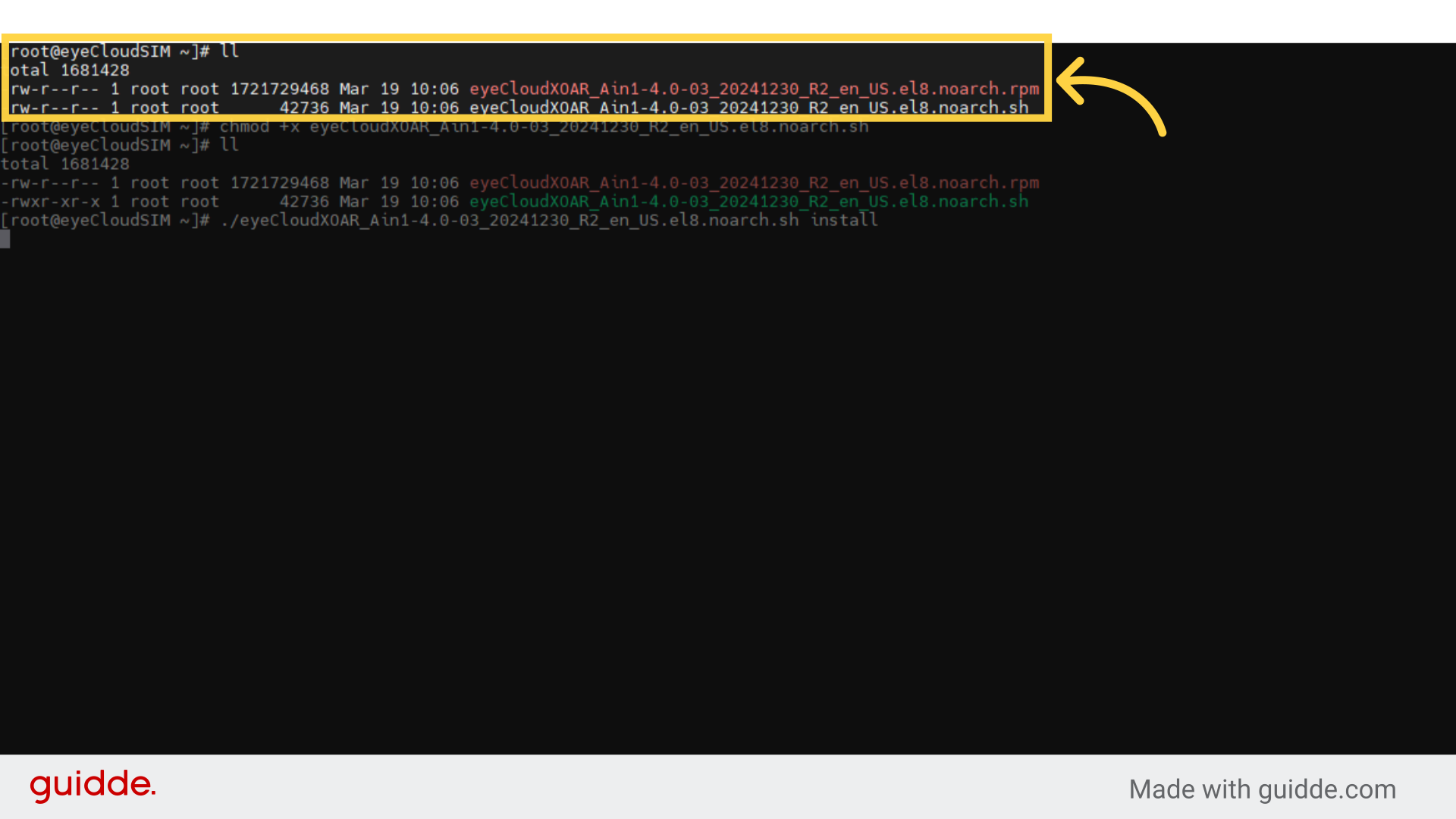
1. Check if the installation files exist in the root directory. Use the following command to verify ll or ls
Enter your connection details, ensuring secure access to eyeCloudXOAR's features.
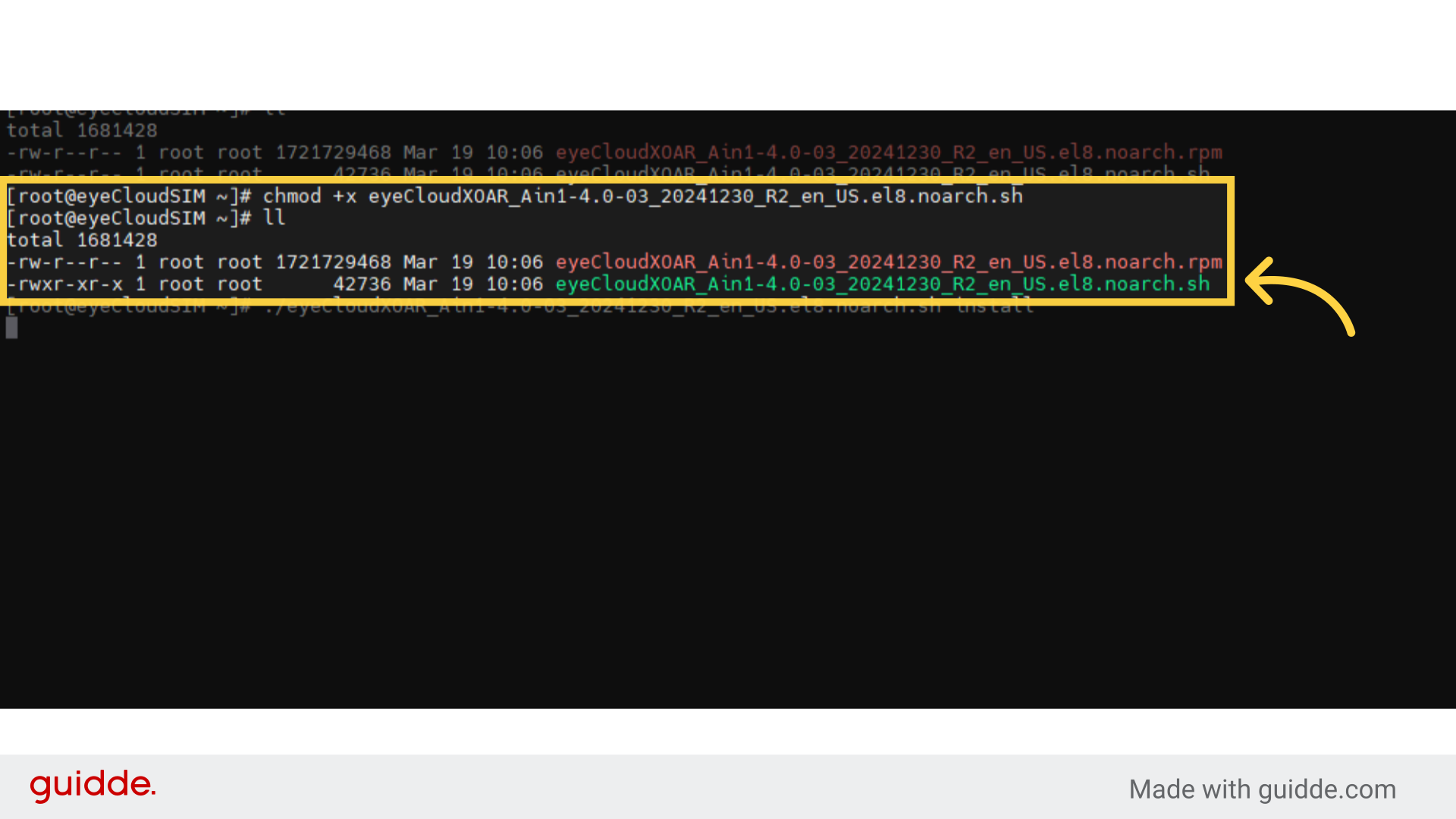
2. Add execution permission to `/etc/rc.d/rc.local`. ex) chmod +x eyeCloudXOAR_Ain1-4.0-03 20241230_R2_en.US.ol8.noarch.sh After granting execution permission using chmod +x, the file appears in green
Enter your connection details, ensuring secure access to eyeCloudXOAR's features.
3. Give execute permission with chmod, the file turns green, then run ex ) ./solution_name install."
Establish the connection to the cloud solution, enabling seamless integration.
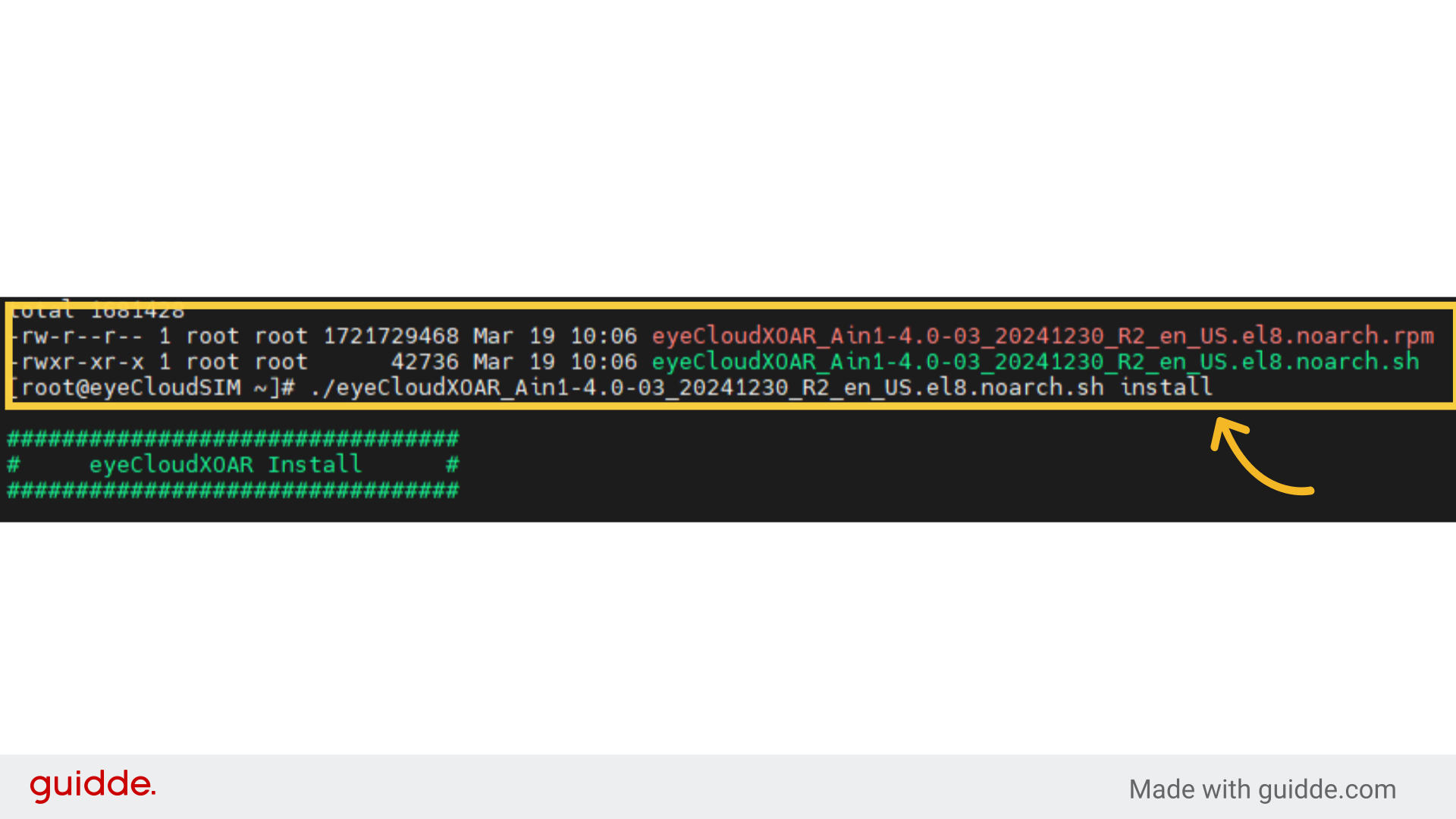
4. Next, run the following command to start the solution installation process: ex) ./eyeCloudXOAR_Ain1_4.0_03_20241230_R2_on_US.ol8.noarch.sh install Press Enter : if you`re default install CloudESM path
Establish the connection to the cloud solution, enabling seamless integration.
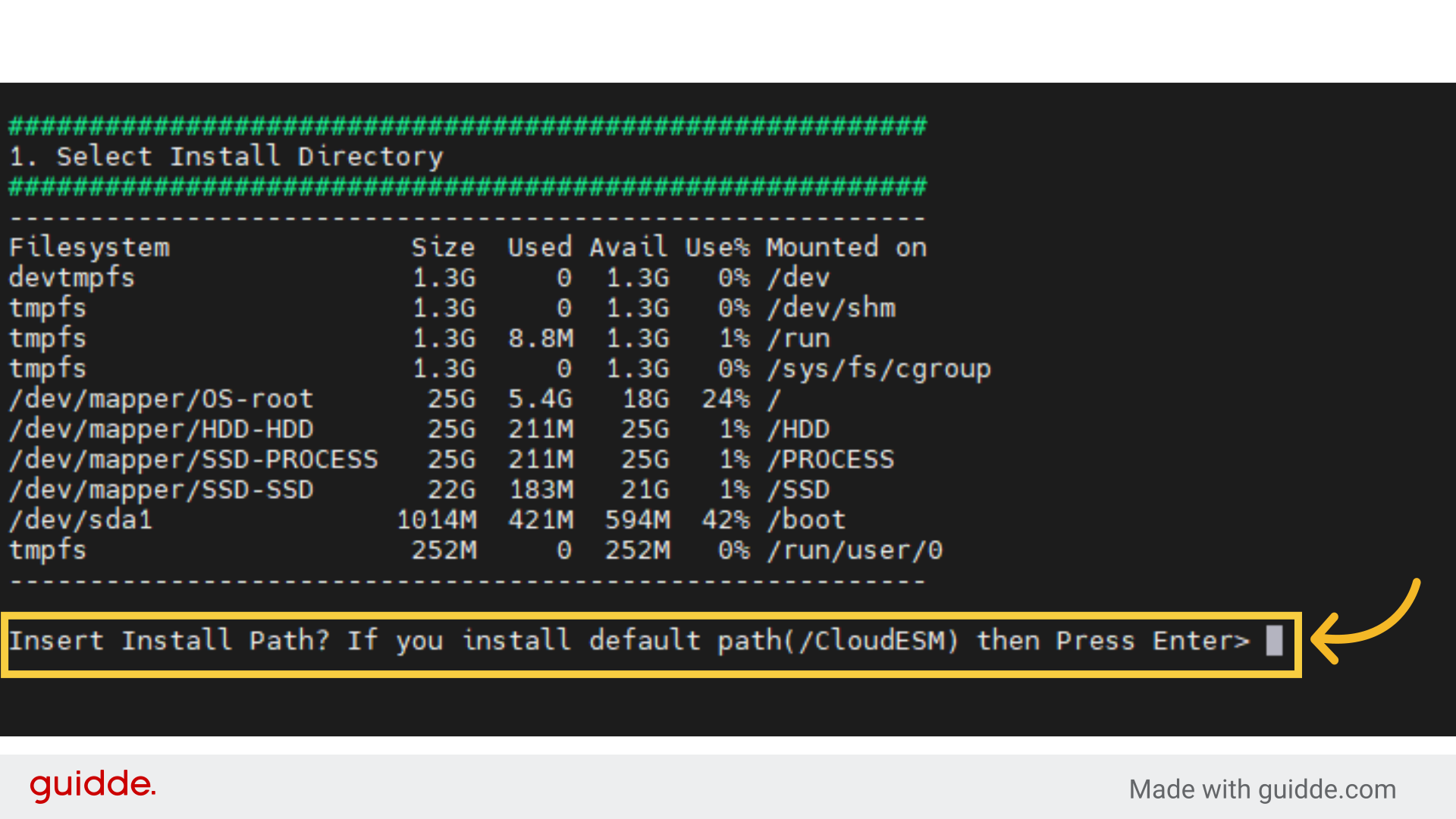
5. If you istall [MariaDB] default path press enter
Re-confirm the connection settings to ensure a stable link to eyeCloudXOAR.
![If you istall [MariaDB] default path press enter](https://static.guidde.com/v0/qg%2Fwxr940oNQfYv85C3QQHobt1dpW92%2Fj6kZqUKPfoDS97k3iNRryN%2FhmEsFUTVp2HMiVAELLBZn9_doc.png?alt=media&token=ff5d27f1-c468-43bf-aeb7-73896c02eff4)
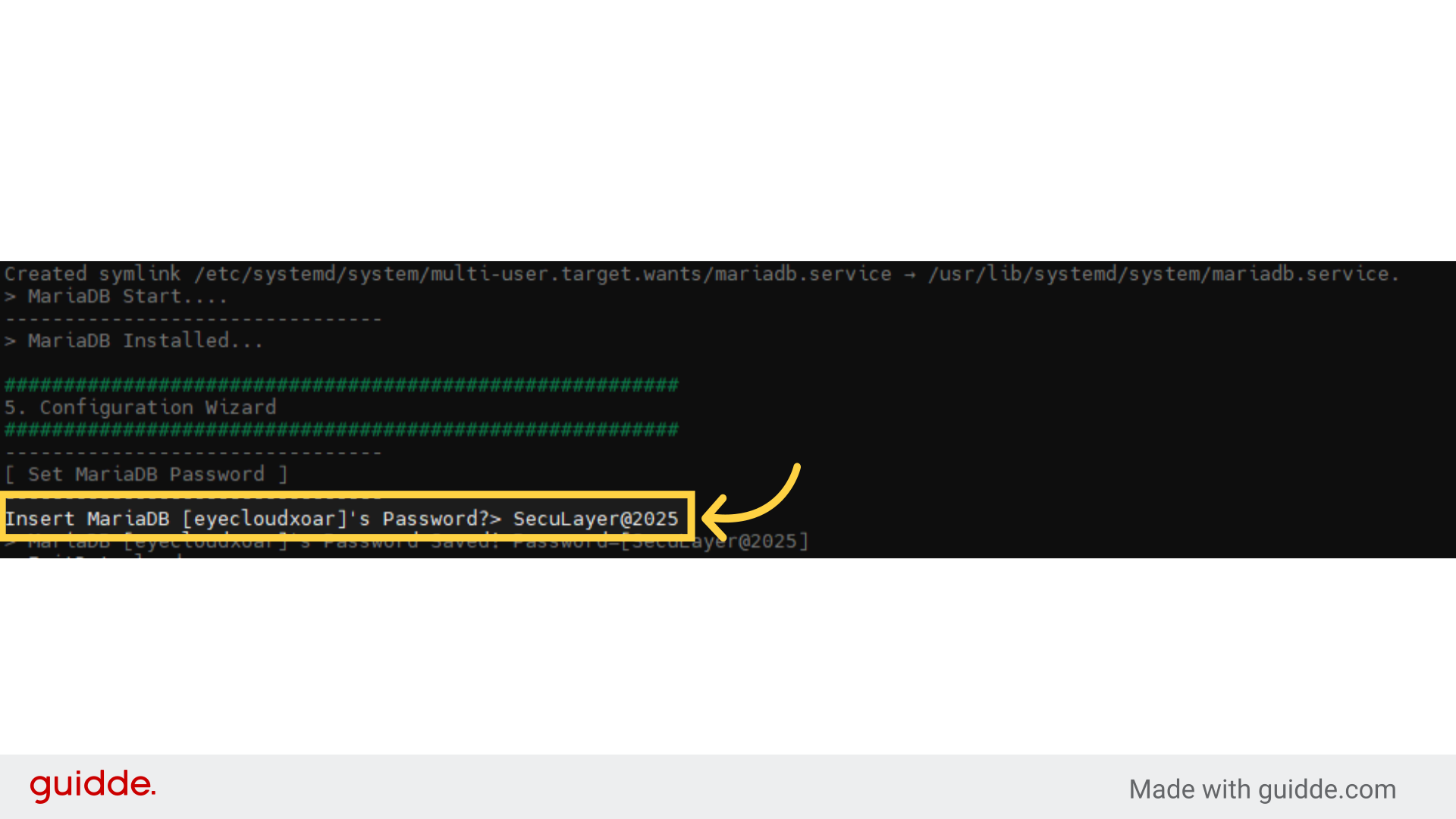
6. Entering the MariaDB password is required. Password format is:
ex) SecuLayer@
Access the SecuLayer 2025 Password.
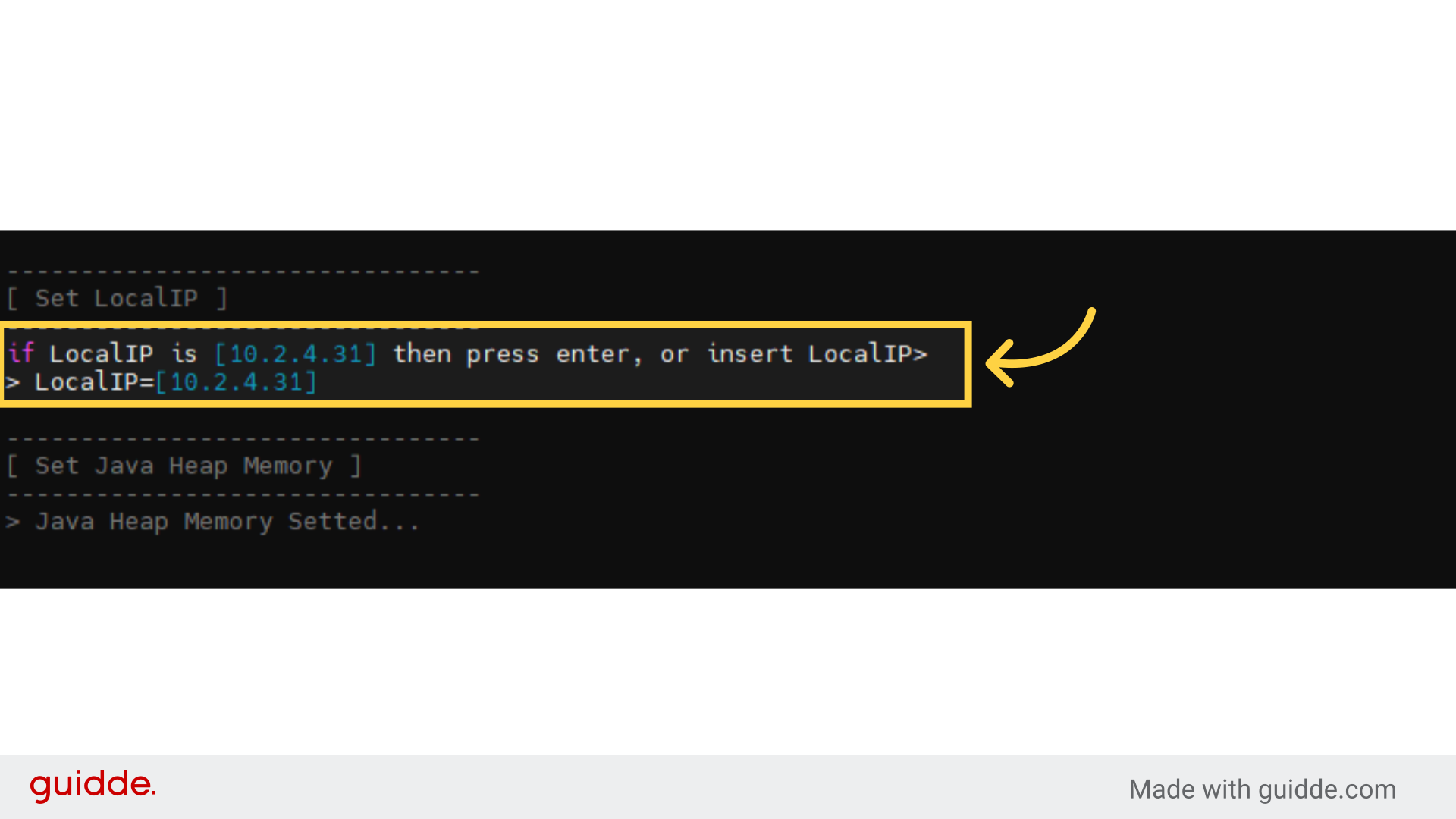
7. Enter the local IP address.
Access MoTTY.
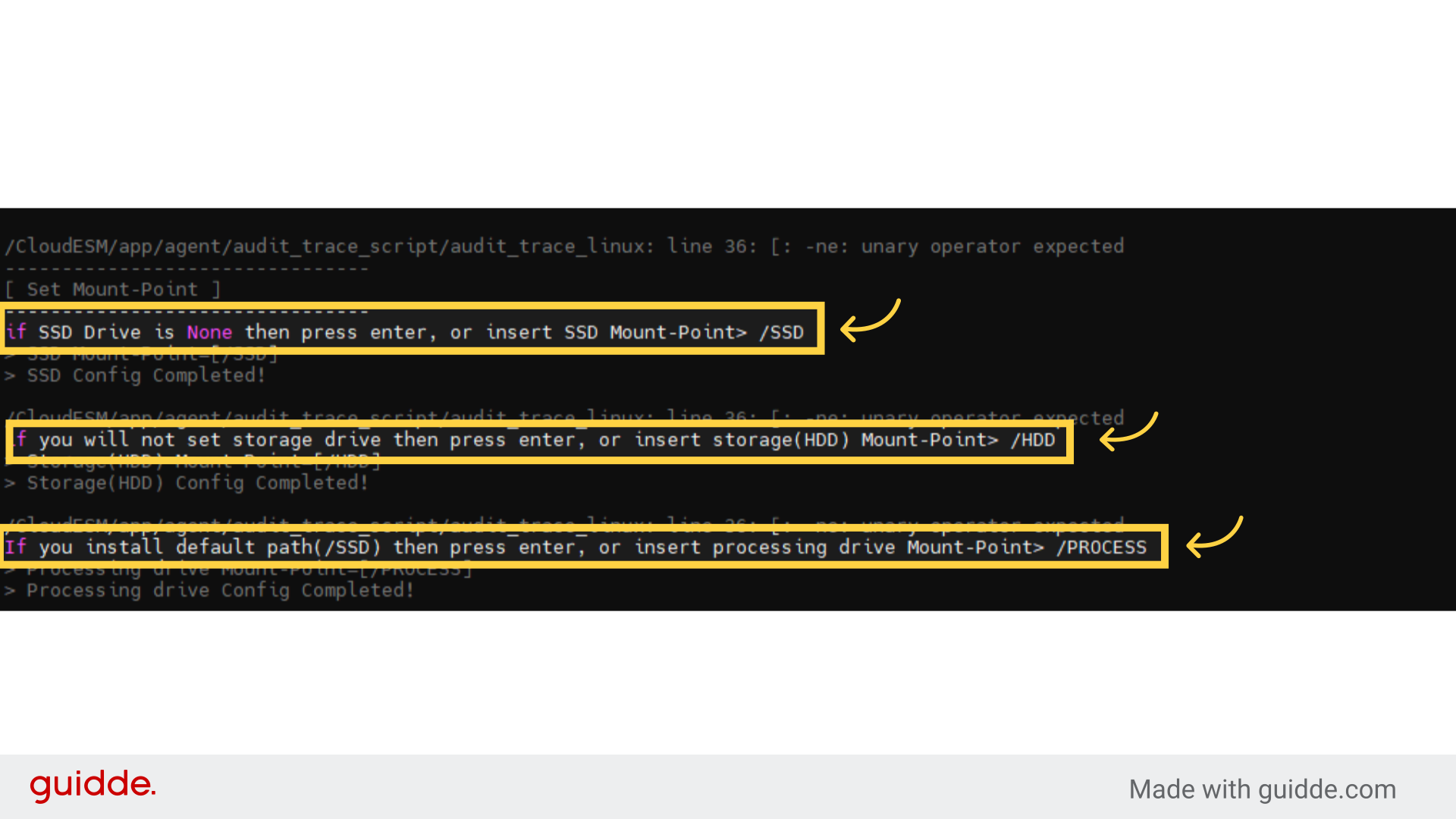
8. **SSD Mount-Point Configuration:** If the `/SSD` partition exists, set the mount point to `/SSD`. **Storage (HDD) Mount-Point Configuration:** If the `/HDD` partition exists, set the mount point to `/HDD`. **Processing Mount-Point Configuration:** If the `/PROCESS` partition exists, set the mount point to `/PROCESS`.
Navigate to MoTTY.
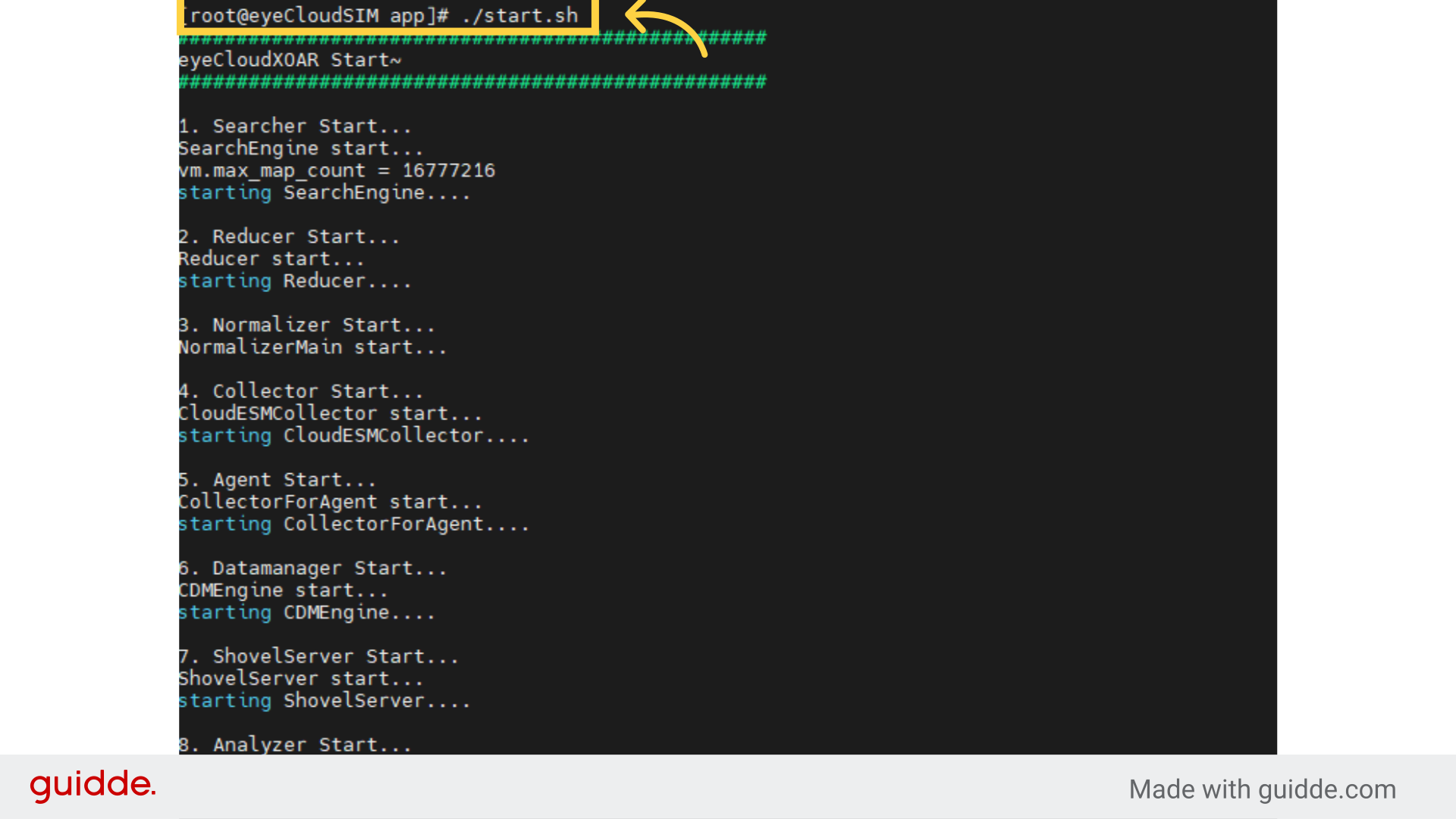
9. After installing the solution, run the following command to start it: ./start.sh
Access MoTTY for a secure connection.
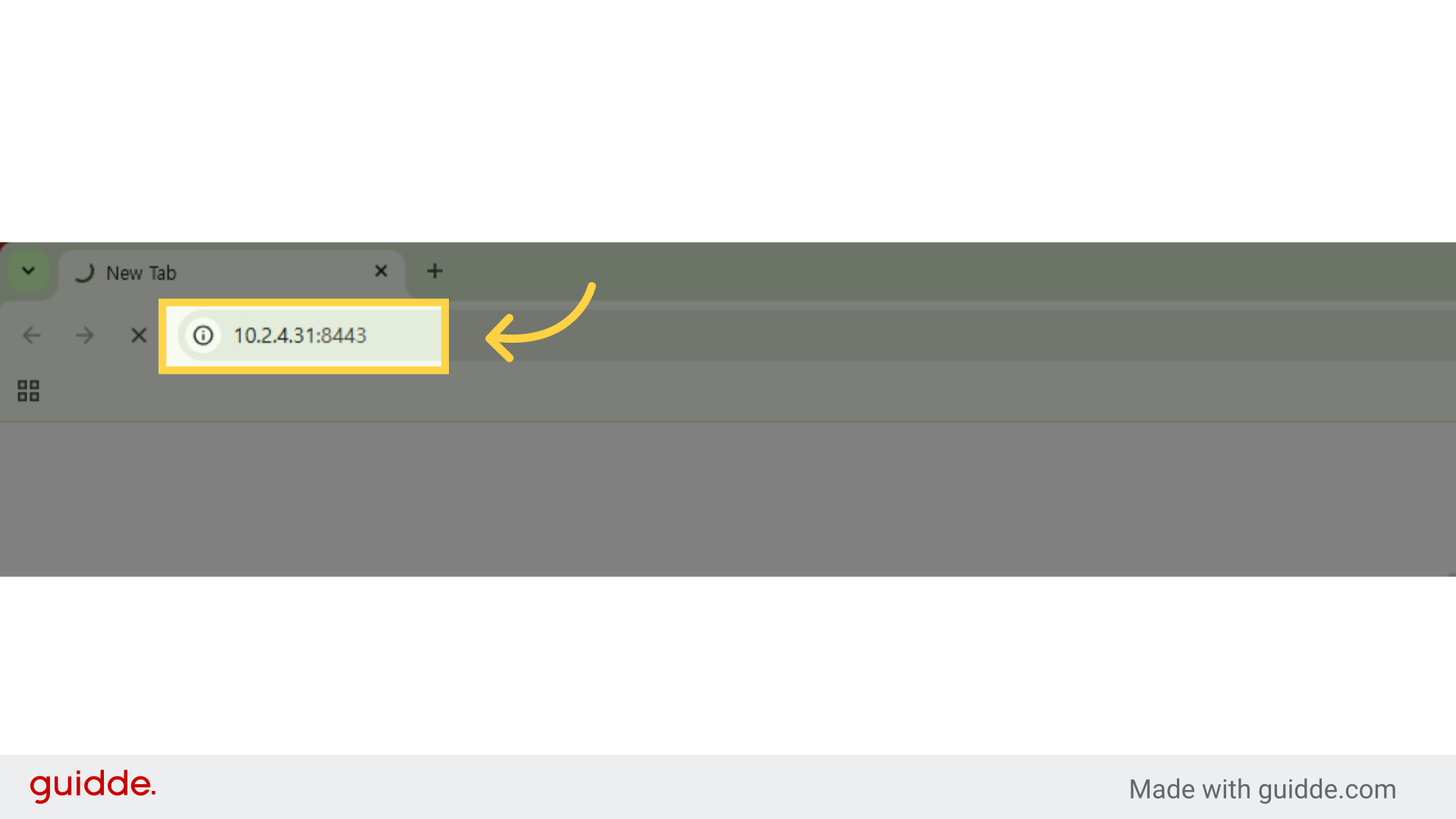
10. During the solution installation, enter the local IP address for web access. ex) https://10.2.4.31:8443
Enter your credentials to ensure secure access to your cloud environment.
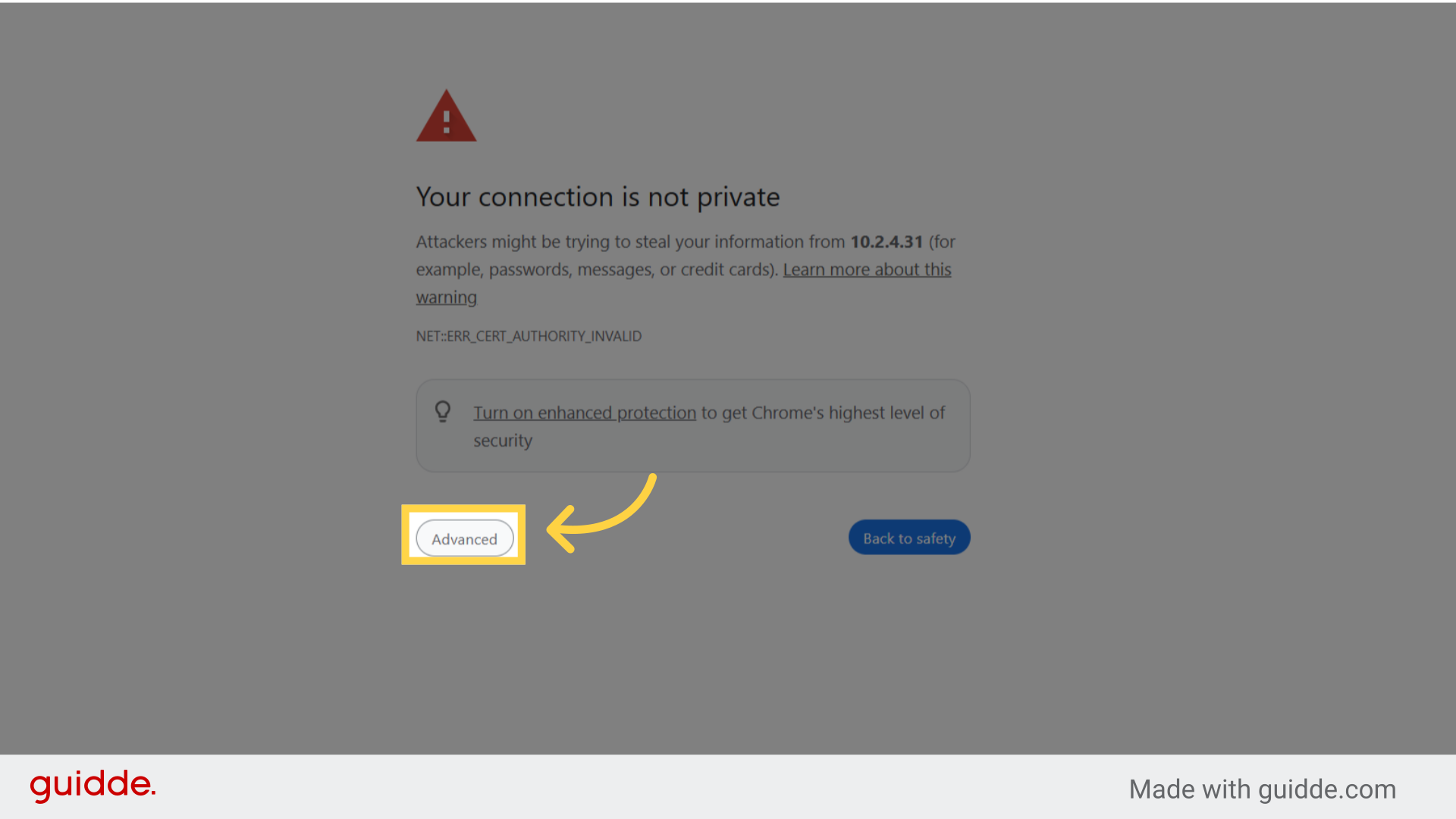
11. Click "Advanced" to proceed to the login page.
Access advanced options to troubleshoot or configure settings as needed.
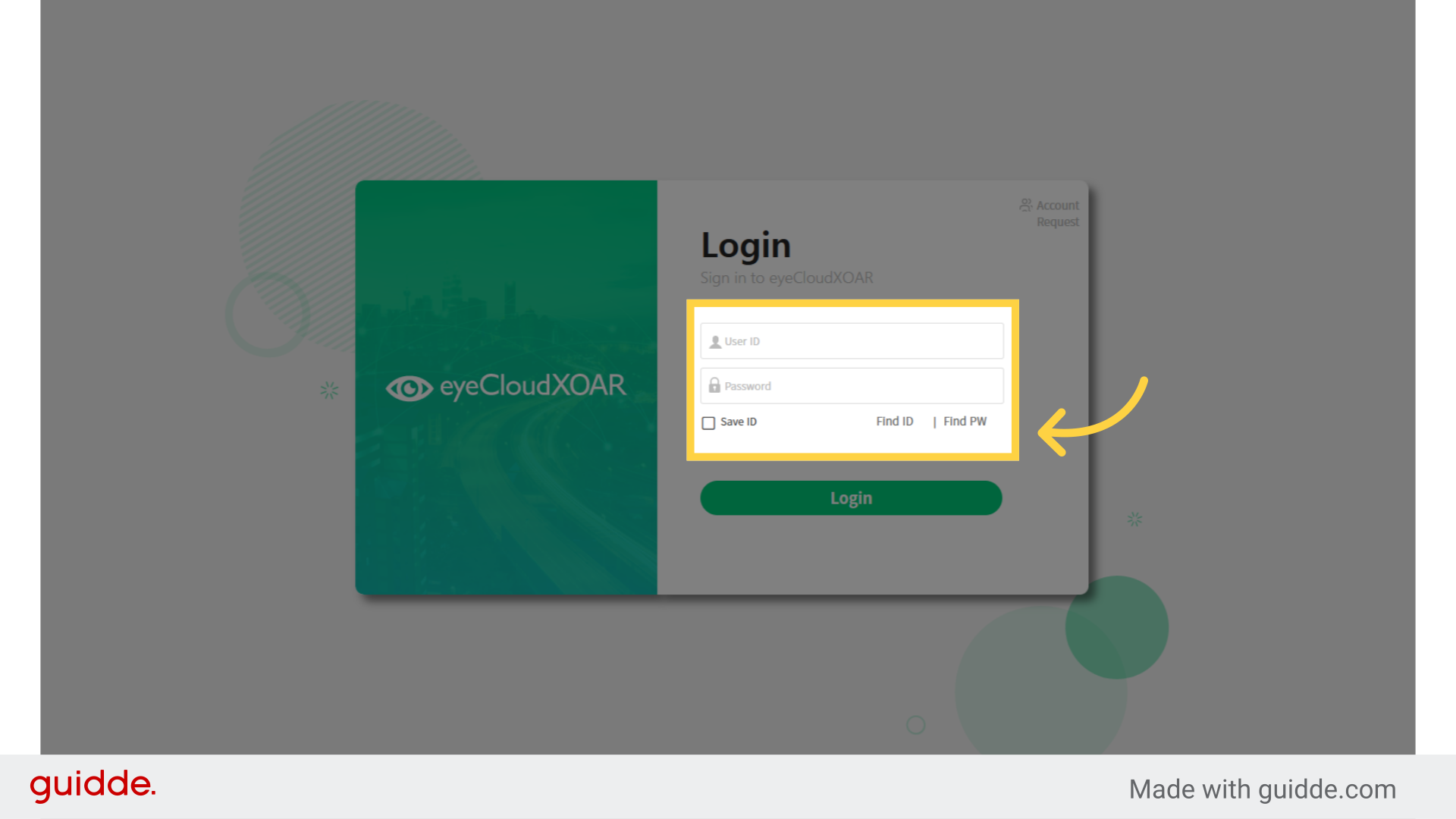
12. To access eyeCloudXOAR, enter your User ID and Password in the login fields, then click the Login button.
Select the specified option.
13. Thank You
This guide covered the steps required to manual PDF in chrome.