
Parser Generator
This is a tool to create a parser to perform normalization on logs collected by Parser Generator. When monitor invalid logs in real-time monitoring and run Parser Generator, the original log is specified, and you can create a Parser policy in XML format using Separator or Regex and apply it to the linked equipment.
|
Log Normalization Procedure
-
Right-click on unnormalized logs
-
String conversion: Convert to Base64/URL/HEX/MD5/SHA values
-
Open XML Parser: A tool for generating parser XML code by analyzing sample (raw) logs, breaking them down, and mapping to user-defined fields in order to create normalization policies for search and analysis

-
Selecting Open XML Parser runs the Parser Generator
-
Depending on the log format, two types of parsers are supported: Separator and Regex
-
Separator: Used when logs are clearly divided by consistent delimiters
-
Regex: Used when it's difficult to separate logs using delimitersSeparator


Field Extraction Rules
For the following log formats, field values are automatically extracted:
Key-Value
JSON
CEF (Common Event Format)
For all other formats (e.g., pipe-delimited, space-delimited, CSV), field values must be manually defined during the parsing process.
Additionally, regardless of format, both original_log and eqp_type must always be included as mandatory fields.
When defining field values during log parsing, the following two fields must be included in every parsed entry:
original_log:
The full raw log string, exactly as received. Used for validation and traceability.
eqp_type:
Identifies the source device type (e.g., FW, WAF, IDS). Used for log classification.
Without these fields, logs may be rejected or not processed correctly.
|
| ||
|
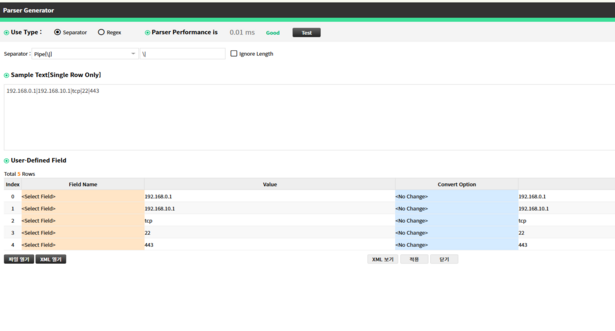
Pipe [\|]
|
Pipe (|) Delimiter
Example: 192.168.0.1|192.168.10.1|tcp|22|443
Description: Fields are clearly separated by the pipe (|) character. Commonly used for simple log parsing.
 | ||
|
Space [\s]
|
Space Delimiter
Example: 192.168.0.1 192.168.10.1 tcp 22 443
Description: Fields are separated by space. Easy to read but problematic if field values contain spaces.
 | ||
|
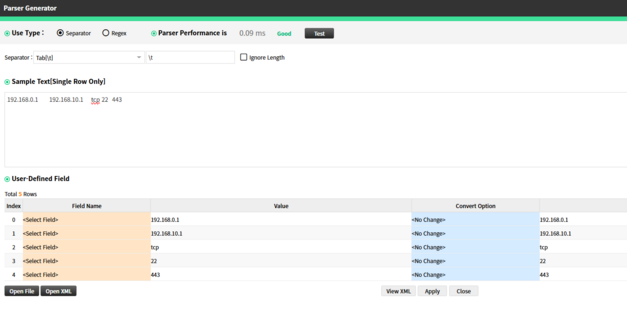
Tab [\t]
|
Tab Delimiter
Example: 192.168.0.1 192.168.10.1 tcp 22 443
(Note: Tabs may not be visually distinct.)
Description: Uses tab character as delimiter. Often used in structured text logs.
 | ||
|
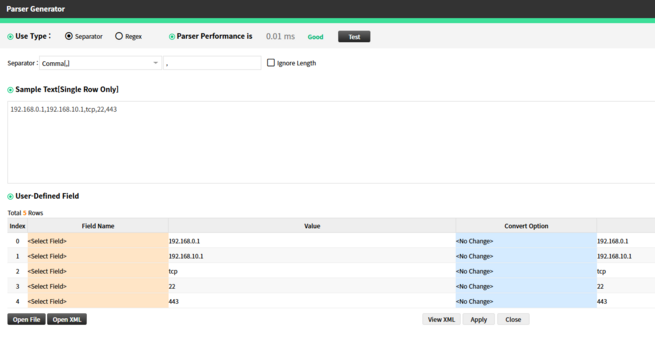
Comma [,]
|
Comma (,) Delimiter
Example: 192.168.0.1,192.168.10.1,tcp,22,443
Description: Standard CSV-style delimiter. May cause issues if fields contain commas.
 | ||
|
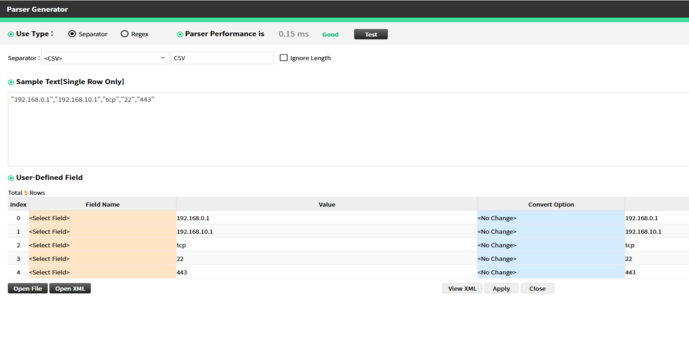
CSV [,] [\”]
|
CSV Format with Double Quotes
Example: "192.168.0.1","192.168.10.1","tcp","22","443"
Description: Each field is enclosed in double quotes to ensure proper parsing, especially when commas are included in field values.
 | ||
|
JSON
|
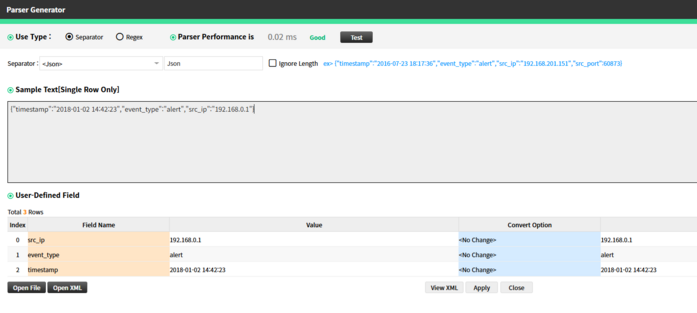
Syslog JSON Format
Example: {"timestamp":"2018-01-02 14:42:23","event_type":"alert","src_ip":"192.168.0.1"}
Description: Log is in JSON structure. Widely used in modern log processing systems.
 | ||
|
Key&Value(2)
|
Key-Value Format
Example: sc_ip="192.168.0.1",dstn_ip="192.168.10.1",prtc="tcp",src_port="22"
Description: Fields are shown as key-value pairs. Easy to parse and widely used in security logs.
 | ||
|
CEF
|
Common Event Format (CEF)
Example:
fenotify-20252856.warning: CEF:0|FireEye|CMS|7.8.1.468932|DM|domainmatch|1|rt=Oct 19 2016 01:04:40 UTC n3Label=cncPort cn3=53 cn2Label=sid cn2=80448589 shost=dns.example.com proto=udp spt=23619
Description: Used for integration with SIEM and ESM systems. Fields separated by pipe (|), with additional key-value fields at the end.
 | ||
|
LEEF
|
LEEF (Log Extended Event Format)
Example:
LEEF:1.0|Microsoft|MSExchange|4.0 SP1|15345
Description: Used for IBM QRadar integration. Pipe (|) is used as the delimiter, followed by optional key-value pairs.
 | ||
|
etc
|
Custom Delimiters
Example:
Backtick () as delimiter → 192.168.0.1`tcp`22`
Equal sign (=) as delimiter → src_ip\=192.168.0.1
Description: When using a custom delimiter not listed in predefined options, prefix it with a backslash (\) for recognition and correct parsing.
|
Regex
|
-
Frequently Used Regular Expression Examples in the Solution
|
It is recommended not to use the (.+) phrase when normalizing, as it may put a burden on the Normalizer, which is the normalization process.

-
To extract certain parts of the original log as searchable fields, wrap the desired values in parentheses ( ) to define them as fields.
-
You can also define fields using the "Use Field" checkbox.
-
When a regular expression is entered, matched text in the Sample Text will be highlighted in yellow, and selected field values will be highlighted in blue.
-
Once fields are properly separated using either delimiters or regular expressions, you must assign a field name.
-
If no field name is assigned, the separated data will not be normalized, even if it has been matched.
-
<Select Field>
-
Field Name Background Colors:
-
Red: Default fields used by eyeCloudSIM. These cannot be modified or deleted.
-
Blue: User-defined fields. These can be modified or deleted, except when currently in use.
-
If the field you want doesn't exist, you can create a new one by entering a Field Name & Alias as needed.

Convert Option
-
Convert Option > <No Change>
|
Apply Convert Option for Time Value
For fields that mean time, the time format is different, so use the Convert Option option to unify it.
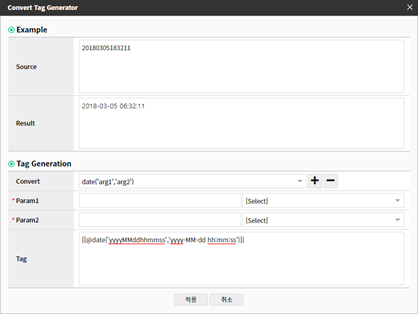
May 14, 2020 1:28:39 PM KST → yyyyMMddHHmmss
[[@replaceAll(',','')]] : , String discarding
[[@replaceAll('\w{1,3}$','')]] : KST String discarding
[[@date('MMM dd yyyy HH:mm:ss a,Asia/Seoul,en,KR','yyyyMMddHHmmss')]] : Convert to yyyyMMddHHmmssE format
Source: Contents of the currently selected field
Result: Check the final output value of the Tag Generation result using Convert Tag in advance.
Convert: Provides Converting using a function provided by Java as an option for field conversion
Parameter1: The value currently entered in Parameter1 is entered in the arg1 value of Convert Option. (Input range: There is no input value limit, but 1 to 65,535 characters or less is recommended)
Parameter2: The value currently entered in Parameter1 is entered in the arg2 value of Convert Option. (Input range: There is no input value limit, but 1 to 65,535 characters or less is recommended)
+ symbol: Enter the selected Convert Option and value as the Tag Generation value
- symbol: Delete the selected Convert Option and value from the Tag Generation value.
Tag Generation: You can check and edit the syntax of the Convert Option to be converted in the form of a delimiter. You can enter it in Convert Option, or you can create it by directly entering a Tag.
✔ replace(‘arg1’,‘arg2’): Replaces Parameter1 value with Parameter2 value once.
✔ replaceAll(‘arg1’,‘arg2’): Replaces all Parameter1 values with Parameter2 values.
✔ regexGet(‘arg1’): Extracts a specific value using a regular expression.
✔ substr(‘arg1’): Outputs a string starting from the first letter and the next number entered in Parameter1.
✔ substr(‘arg1’,‘arg2’): Outputs a string starting from the next number entered in Parameter1 to the next number entered in Parameter2.
✔ date(‘arg1’,‘arg2’): Replaces the date format.
· Example 1) If you change 2014-06-30 to 20140630, enter yyyy-MM-dd in the Parameter1 value and yyyyMMdd in the Parameter2 value.
· Example 2) If you change Jan 14 2014 to 20140114, enter MMM dd yyyy,Seoul,en,US in the Parameter1 value and yyyyMMdd,Seoul,ko,KR (yyyy represents the year, MM represents the month, and dd represents the day. Case sensitive. The city name of Seoul can be any city name, but it cannot be omitted, and the syntax of en,US and ko,KR must be followed.)
✔ unixTimestamp(): Converts Unix Time, which is counted in seconds since January 1, 1970, to the current time expression (HH:mm:ss).
✔ hexRemoveHeader(): Converts the value output as HEX code to a general string by excluding the header.
✔ hexToString(): Converts the value output as HEX code to a general string.
✔ stringToMD5(): Converts the field value to an MD5-encrypted string.
✔ decodeBase64(): Converts a Base64-encrypted value to a decrypted string.
✔ longToIP(): Converts an IP value in Long format to a general IP format.
✔ toLowerCase(): Converts a string to lowercase.
✔ toUpperCase(): Converts a string to uppercase.
✔ ifNull(): Converts a null value to the entered string.
✔ trim(): Removes spaces from the front and back of a string.