General Event
General Event
1. How to Configure Event Detection Options
Discover the eyeCloudXOAR feature, designed for users seeking seamless connectivity to cloud resources
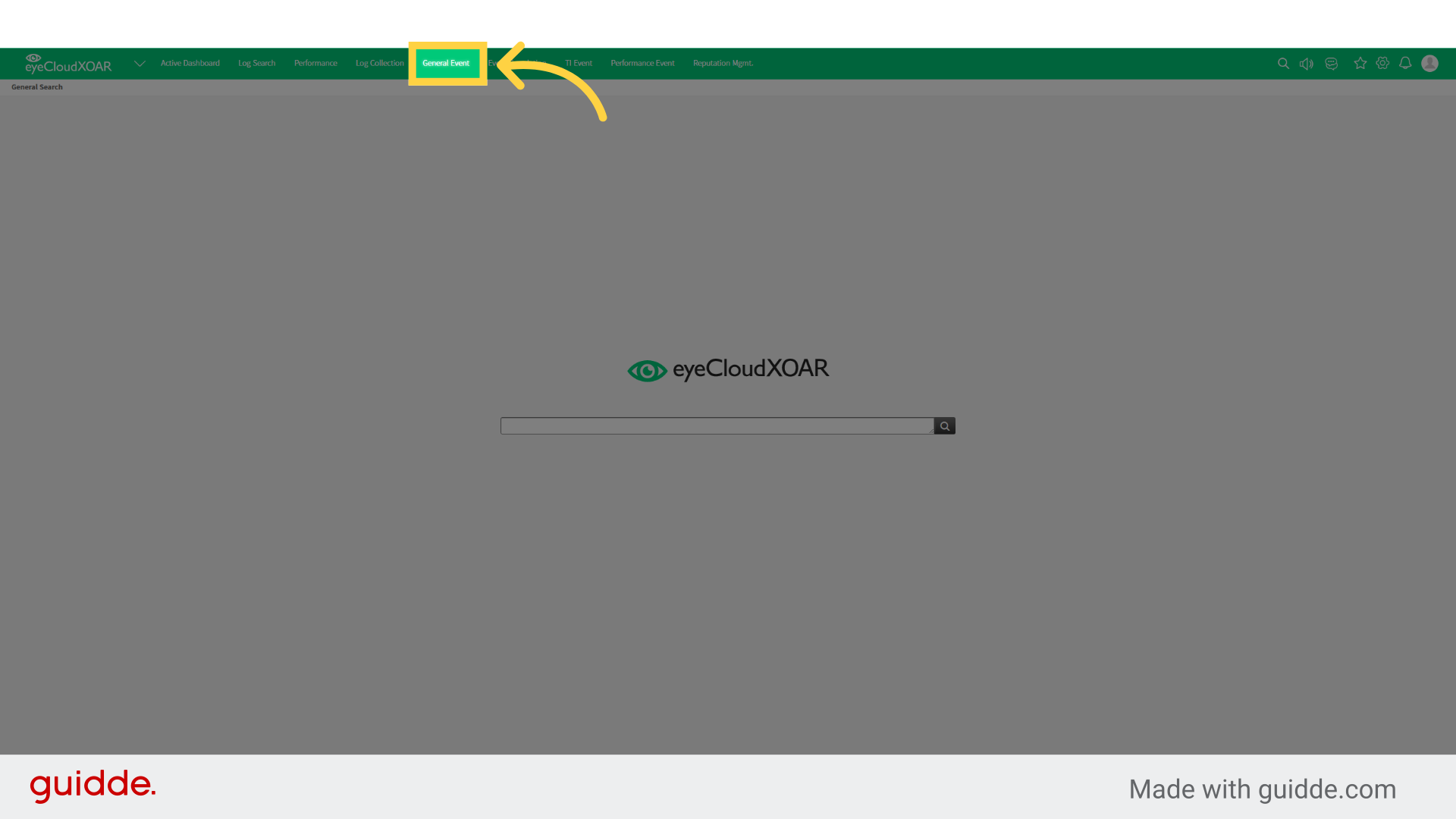
2. Click "General Event"
Navigate to the General Event section.
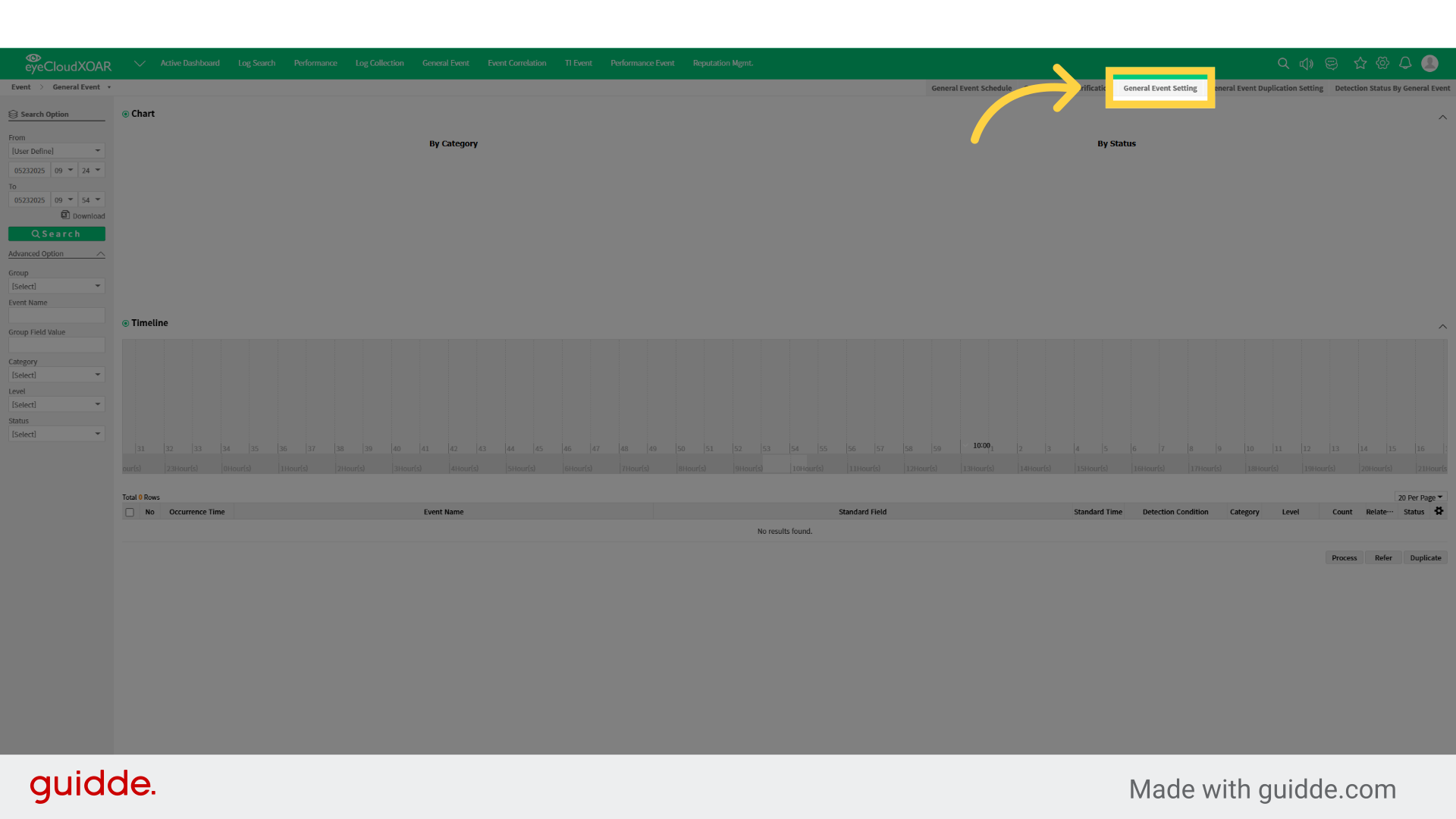
3. Click "General Event Setting"
Open the General Event Settings.
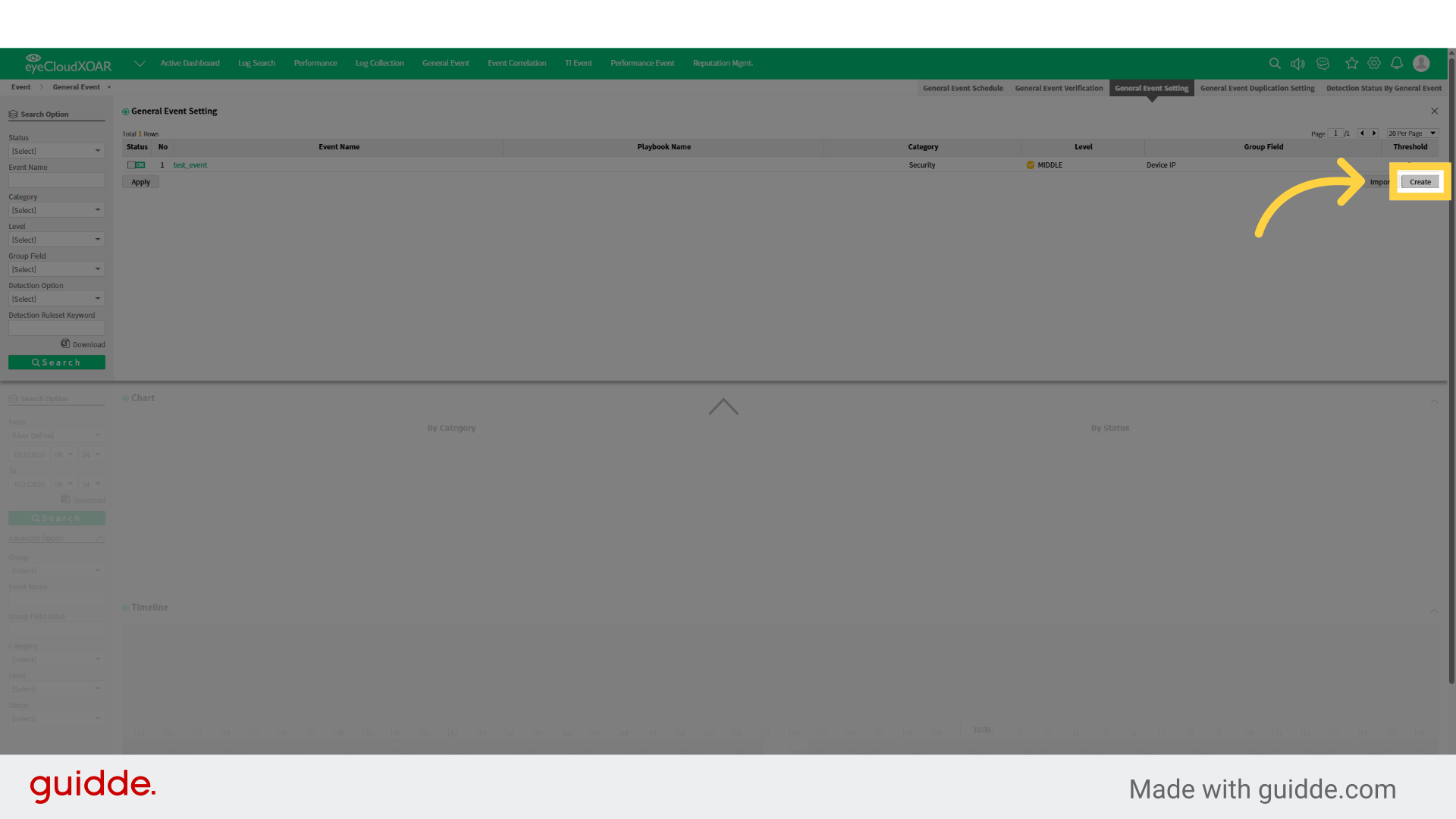
4. Click "Create"
Initiate the creation process.
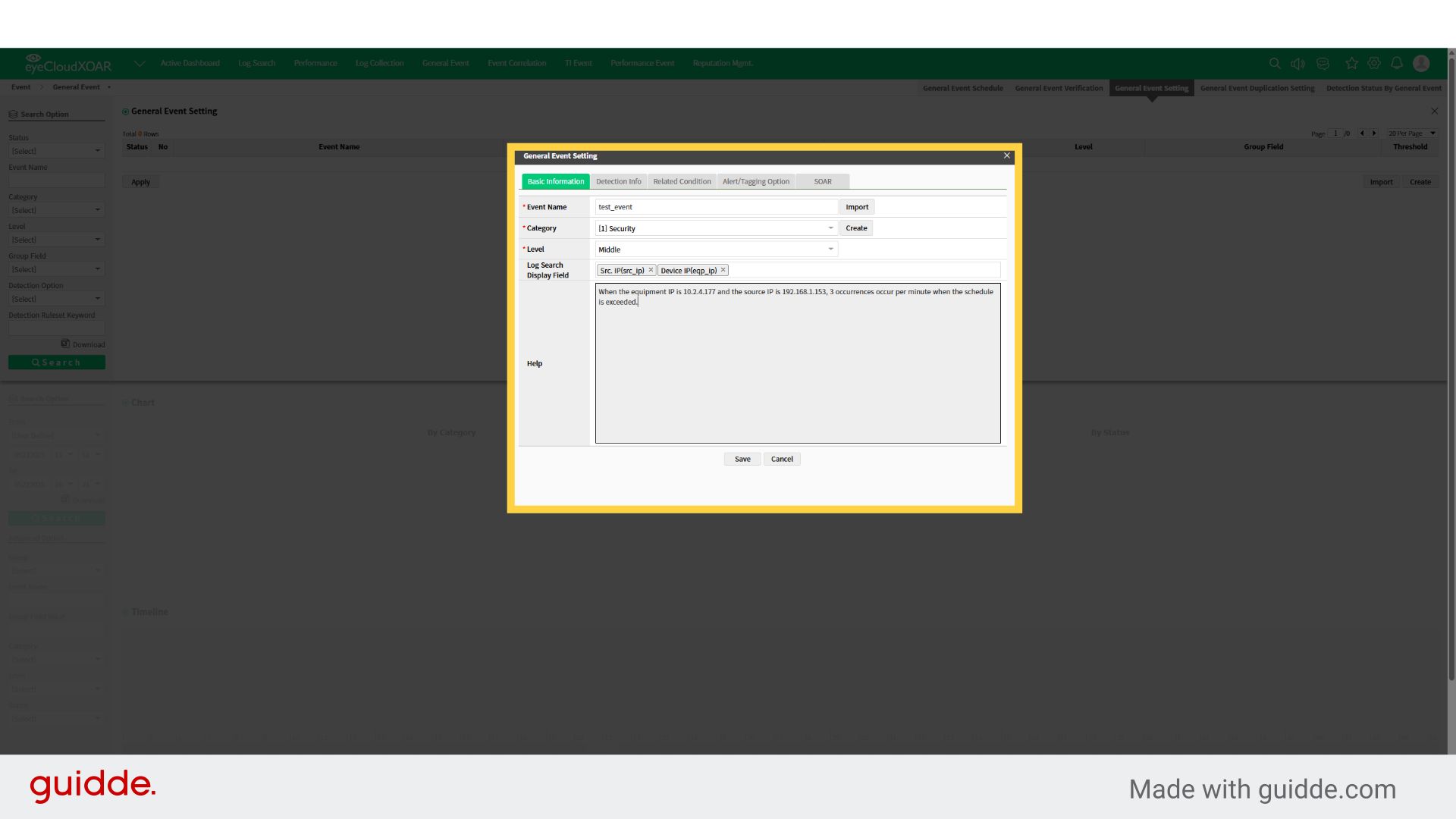
5. When the equipment IP is 10.2.4.177 and the source IP is 192.168.1.153, 3 occurrences occur per minute when the schedule is exceeded. please try it
Click on "When the equipment IP is 10.2.4.177 and the source IP is 192.168.1.153, 3 occurrences occur per minute when the schedule is exceeded."
6. Detect the event upon the first occurrence. Detect the event if it occurs after the reference time has passed since the last rule detection. Ignore the event if the same rule is detected within the reference time.
Choose the On First Event setting.
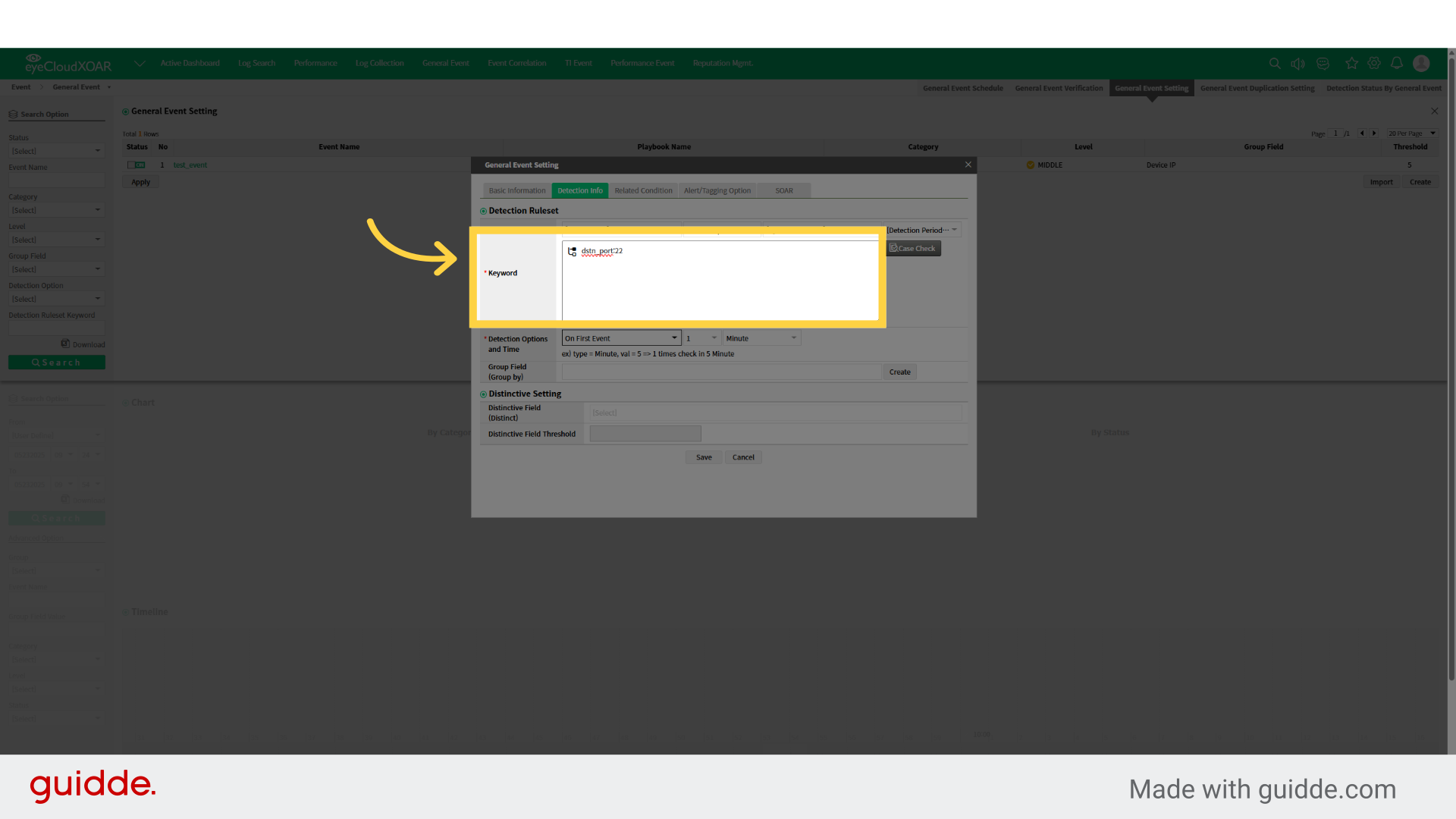
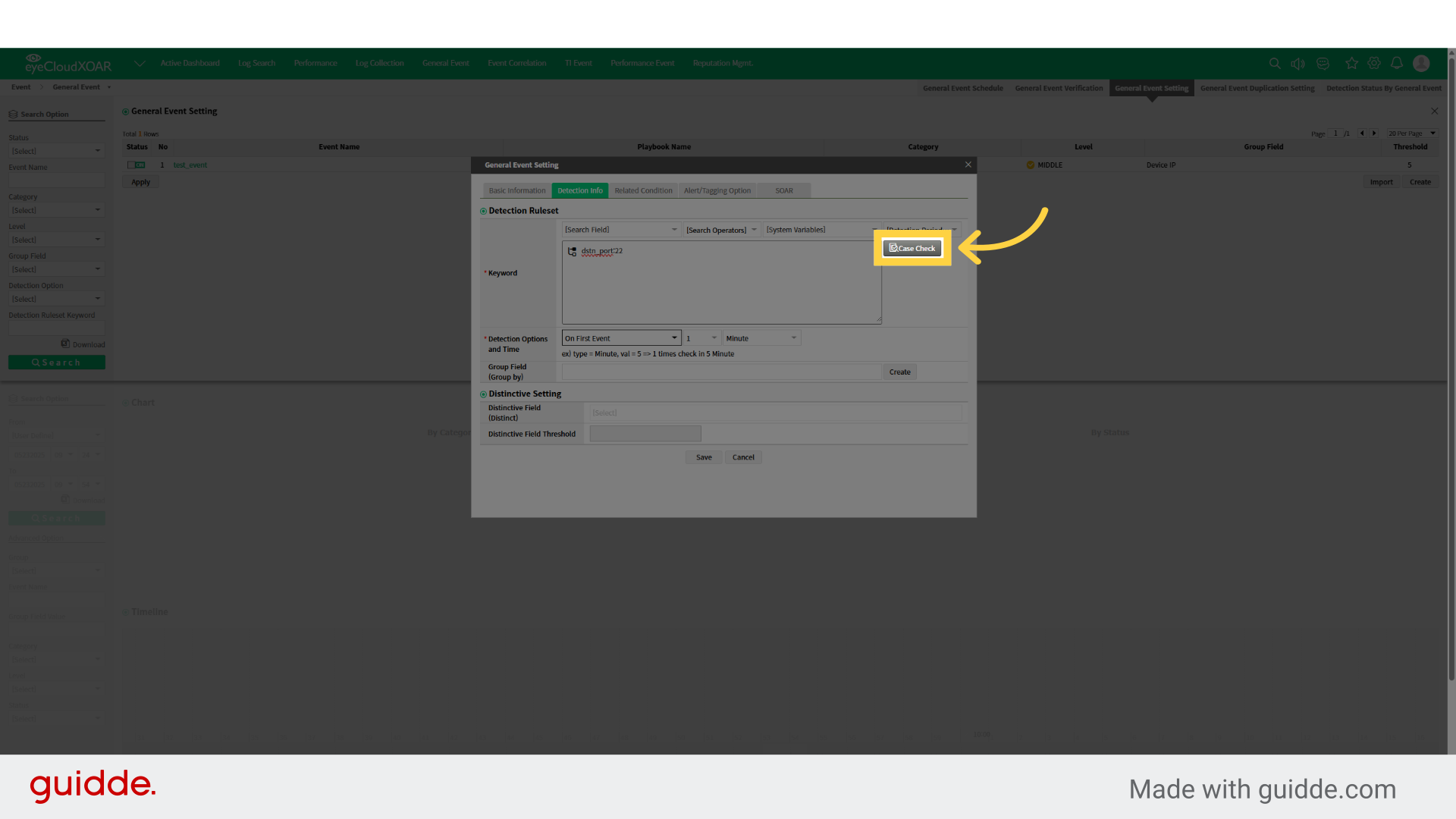
7. Detect the event upon the first occurrence. Detect the event if it occurs after the reference time has passed since the last rule detection. Ignore the event if the same rule is detected within the reference time.
Choose the On First Event setting.
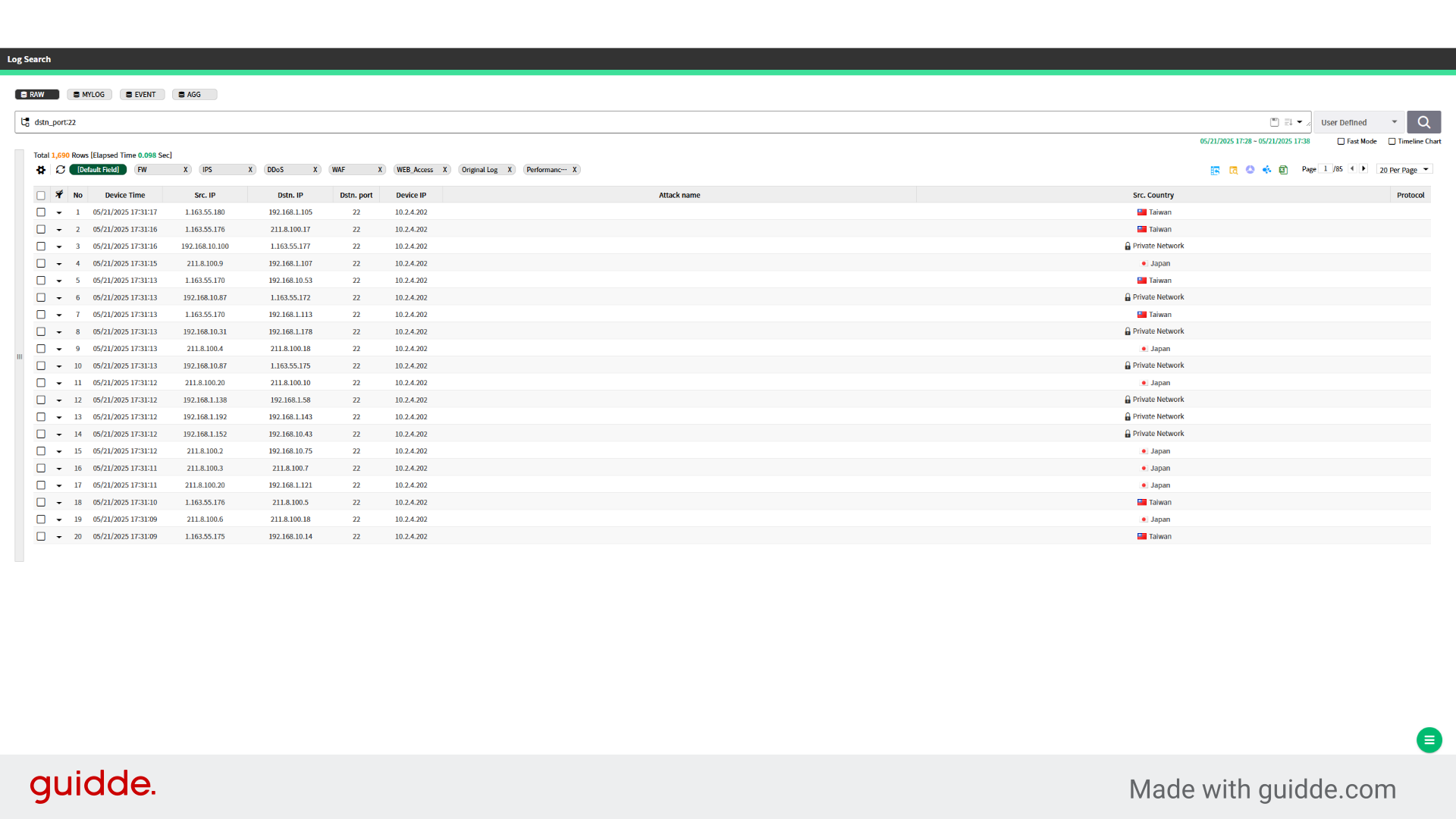
8. Click "Log Search var gServerTime = "20250521173828"; var gSessionUserId = "admin"; //이벤트 이관처리를 위한 변수 var updateFieldList = JSON.parse("false"); // 로그 항목의 제목 저장 var..."
Navigate to "Log Search"
9. Detect the event upon the first occurrence. Detect the event if it occurs after the reference time has passed since the last rule detection. Ignore the event if the same rule is detected within the reference time.
Select On First Event again.
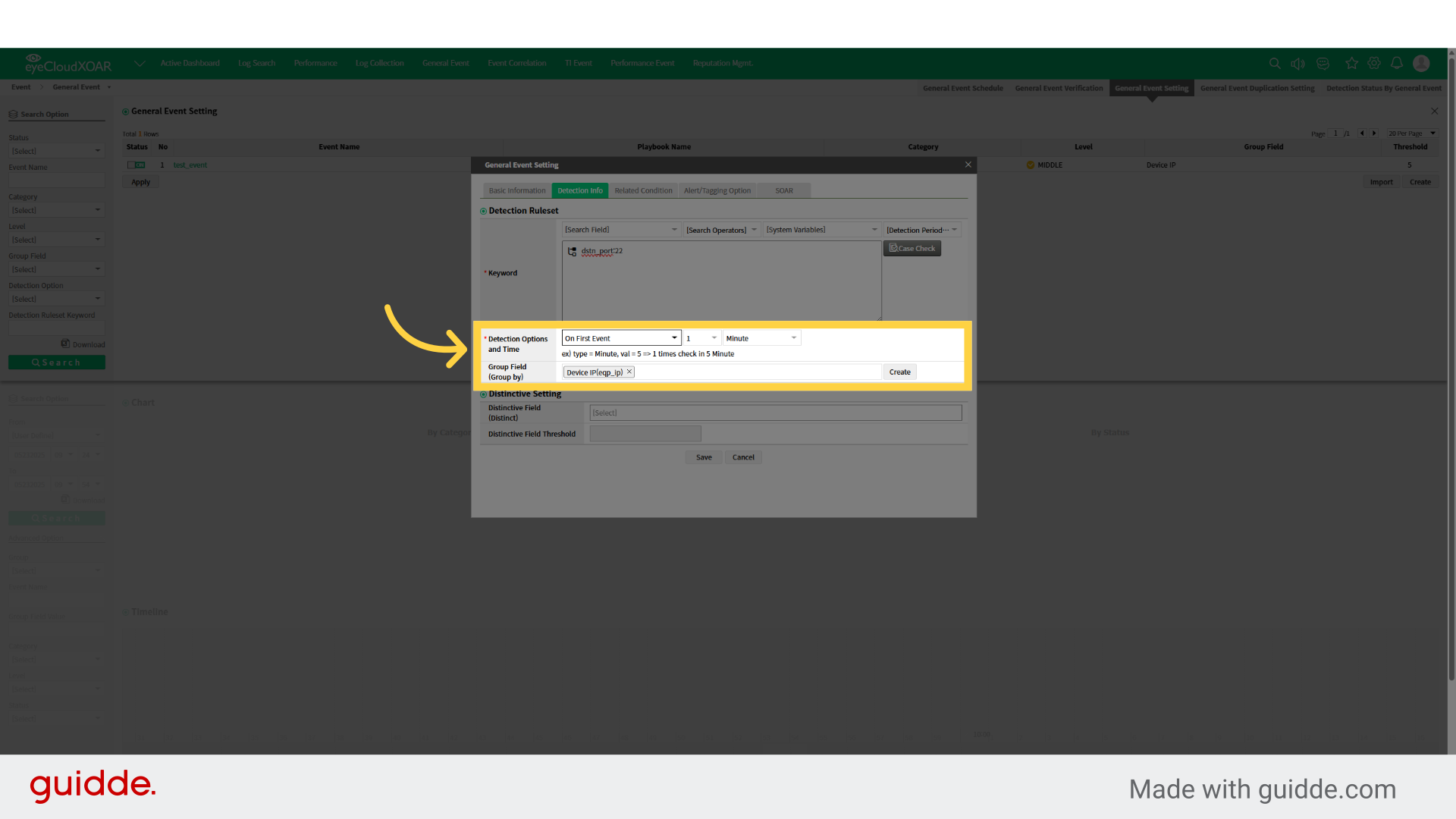
10. Ignore the event upon the first detection Trigger events for all detections occurring within the reference time after the first detection. Ignore the event if the first detection occurs after the reference time has passed since the last detection.
Choose On Every Subsequent Event.
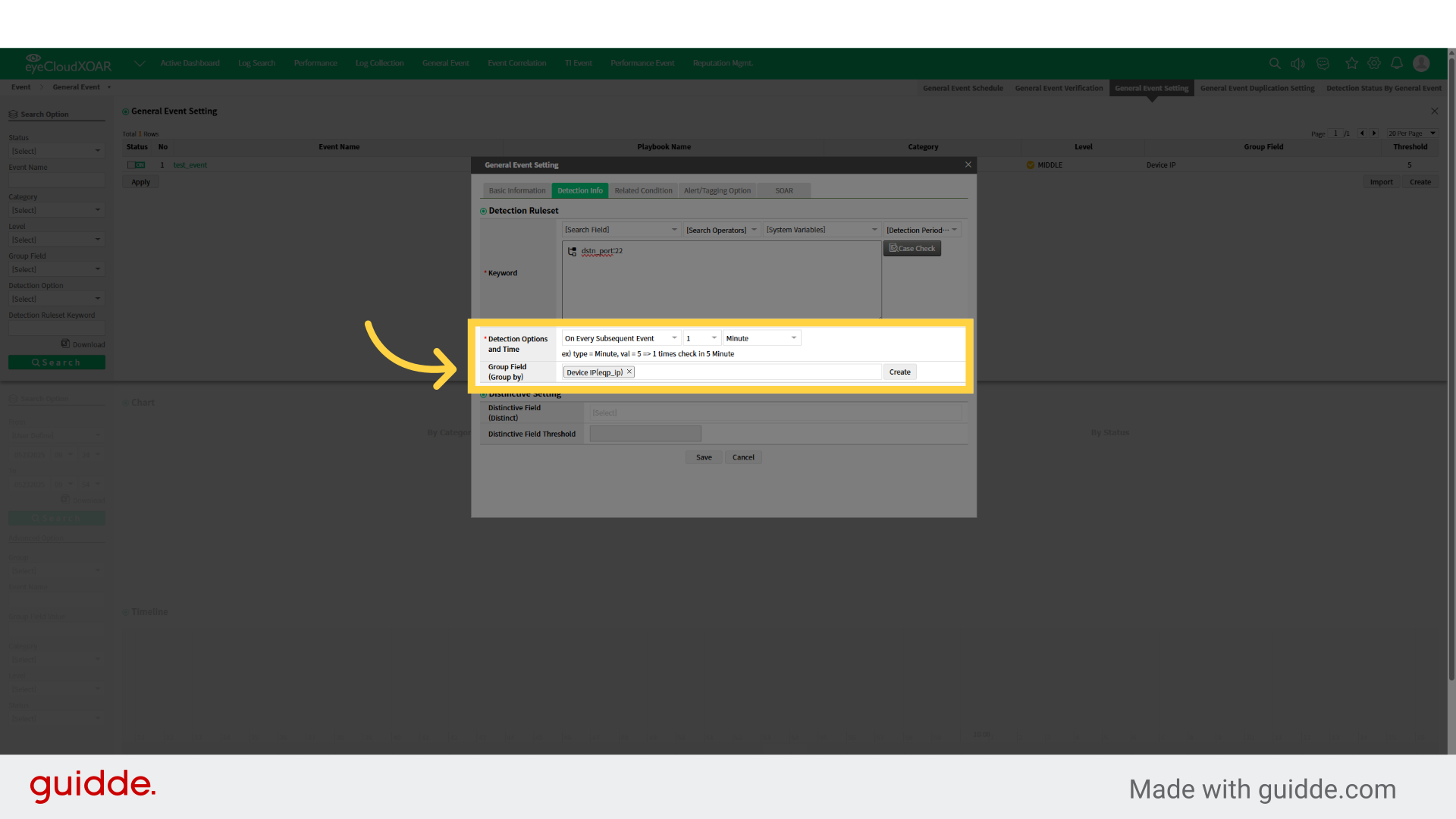
11. No event is ignored. An event is triggered every time any rule is detected, regardless of thresholds or reference time.
Select On Every Event.
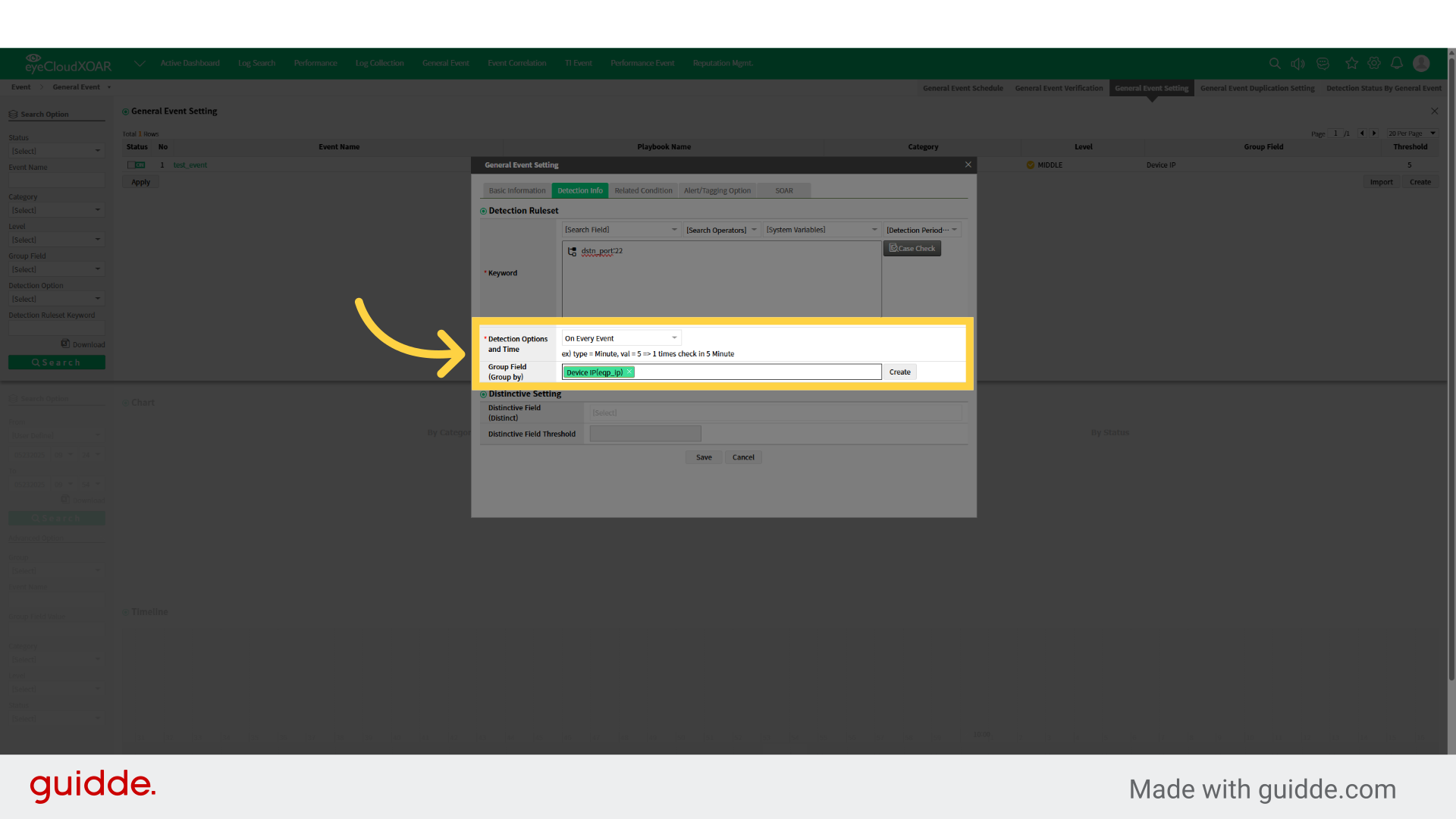
12. Trigger an event when the threshold is first exceeded within the reference time. Trigger an event when the threshold is first exceeded after the reference time has passed since the last detection, and the timer has been reset and started. Ignore detections if they occur continuously within the reference time after the last detection.
Proceed to the next step.
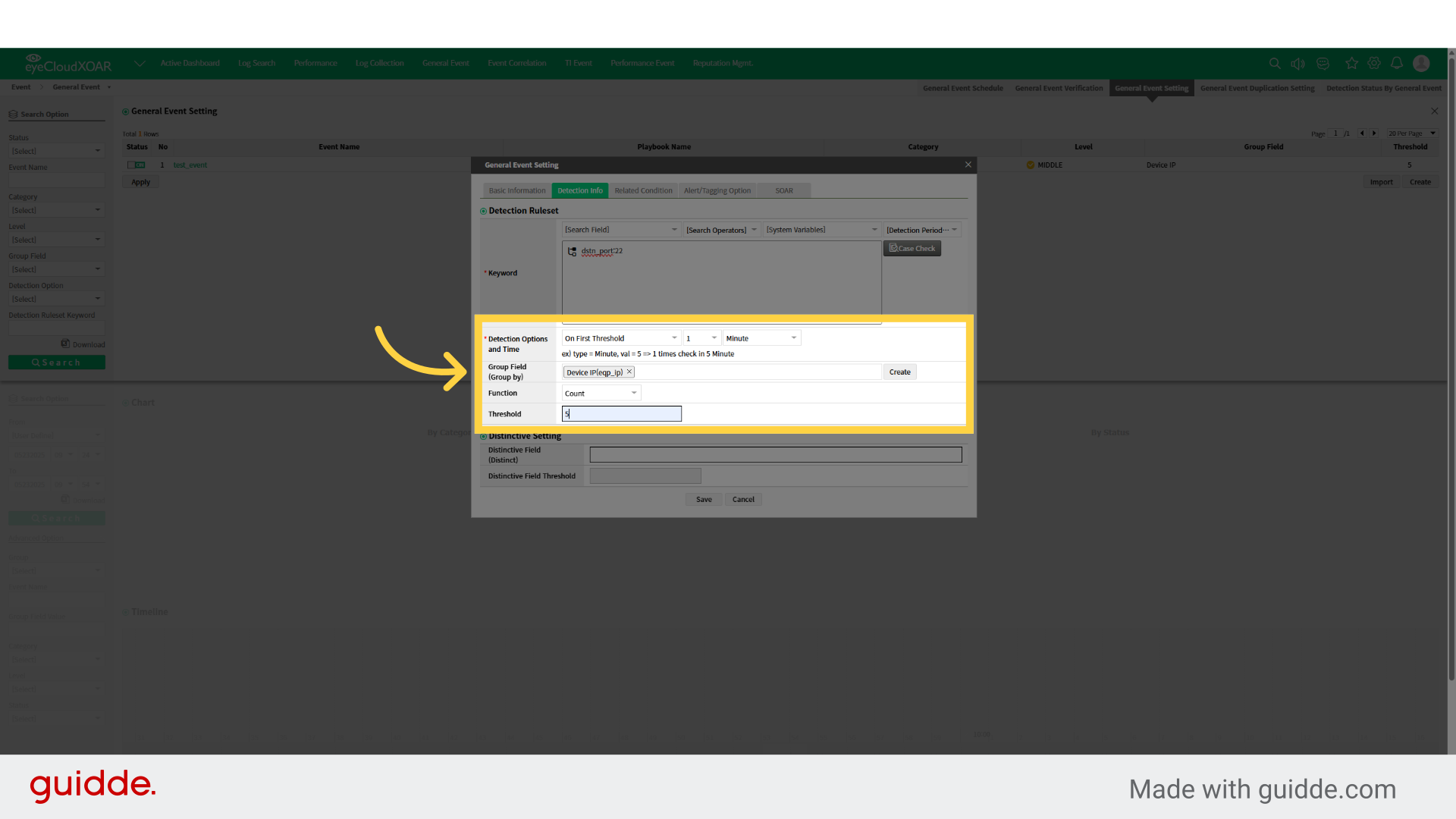
13. Trigger an event when the threshold is first exceeded within the reference time. Trigger an event when the threshold is first exceeded after the reference time has passed since the last detection, and the timer has been reset and started. Ignore detections if they occur continuously within the reference time after the last detection.
Select the On Subsequent Threshold option.
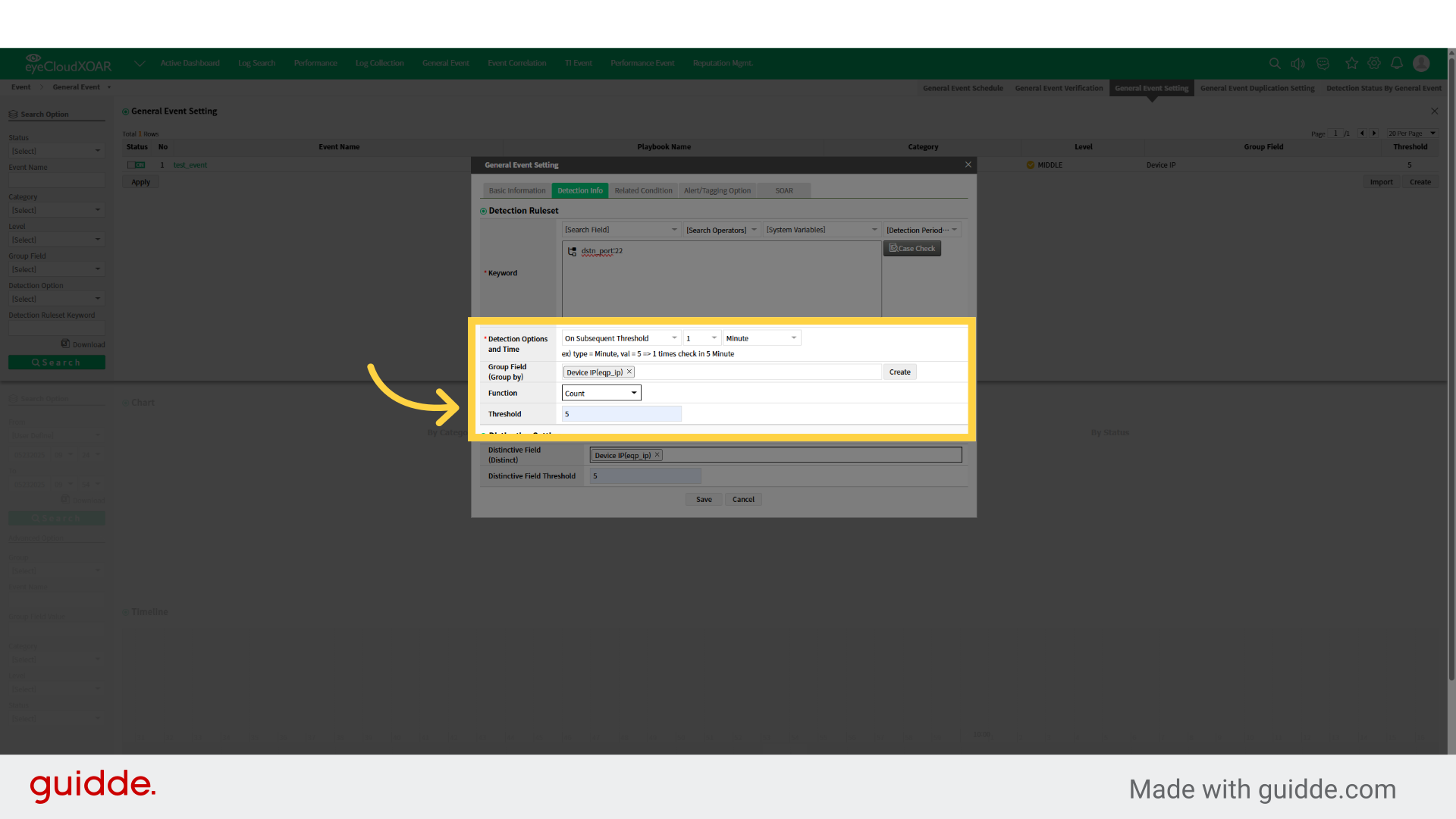
14. Trigger an event each time the threshold is exceeded within the reference time. Trigger an event when the threshold is exceeded after the reference time has passed since the last detection, and the timer has been reset and started. Ignore occurrences that fall below the threshold within the reference time.
Choose On Every Threshold.
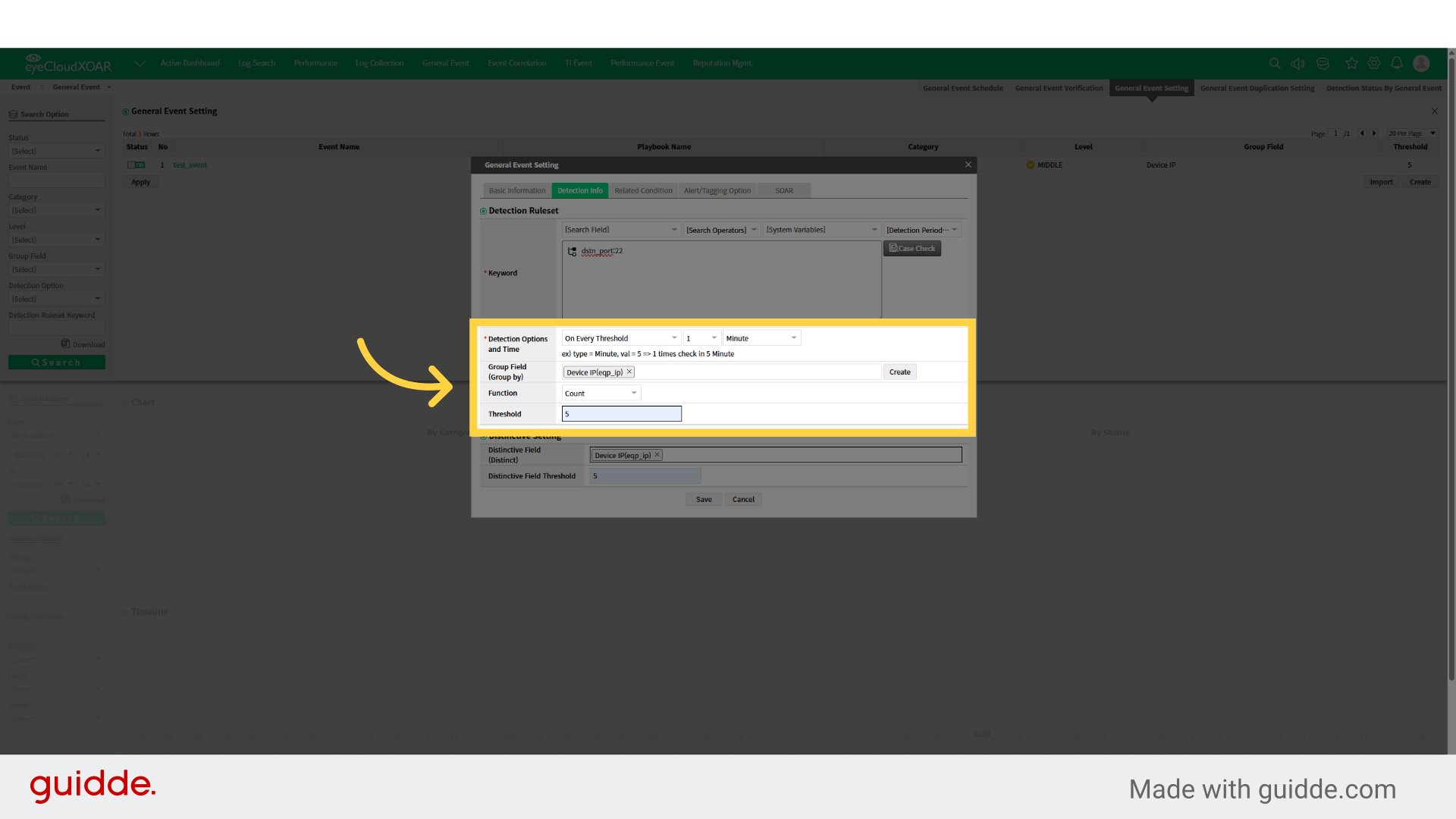
15. Trigger an event when the threshold is exceeded within the scheduled reference time. Ignore occurrences below the threshold within the scheduled reference time.
Navigate to the Basic Information section.
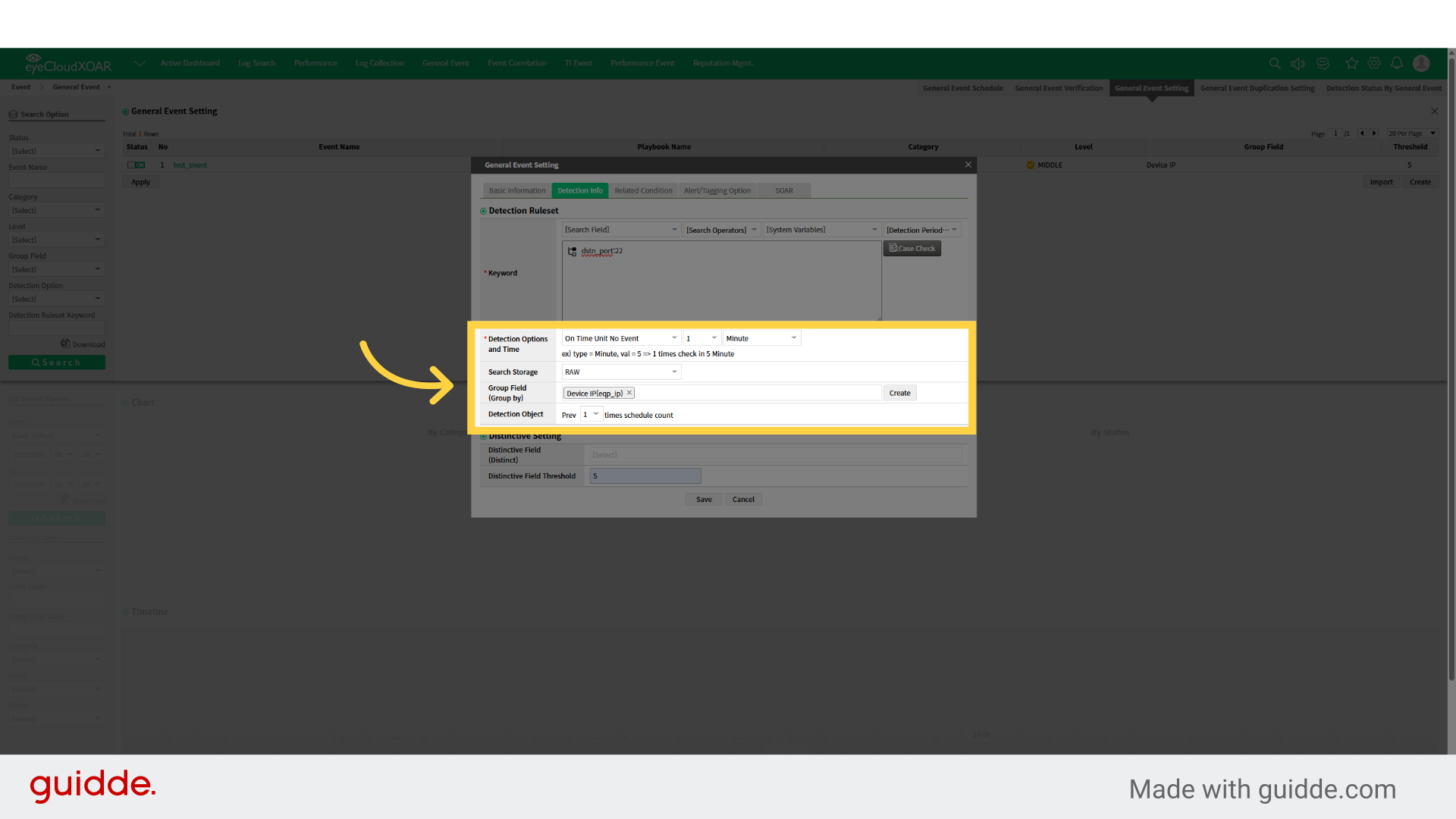
16. Trigger an event when the threshold is exceeded within the scheduled reference time. Ignore occurrences below the threshold within the scheduled reference time.
Navigate to the Basic Information section.
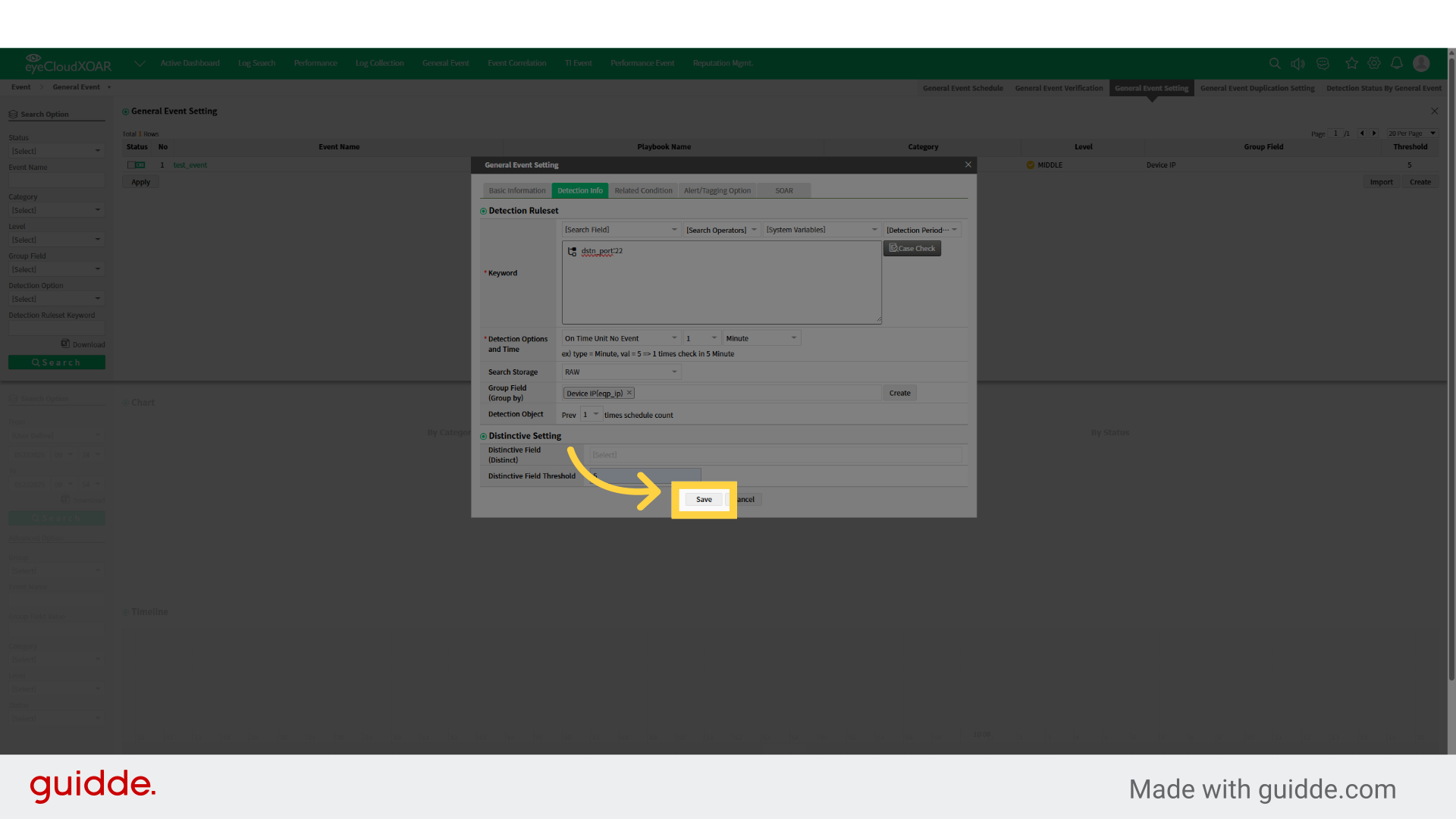
17. Event successfully added to the list Can turn the generated event on or off from this screen.
Apply the changes made.

18. Thank You
This guide covered the steps required to manual PDF in chrome.